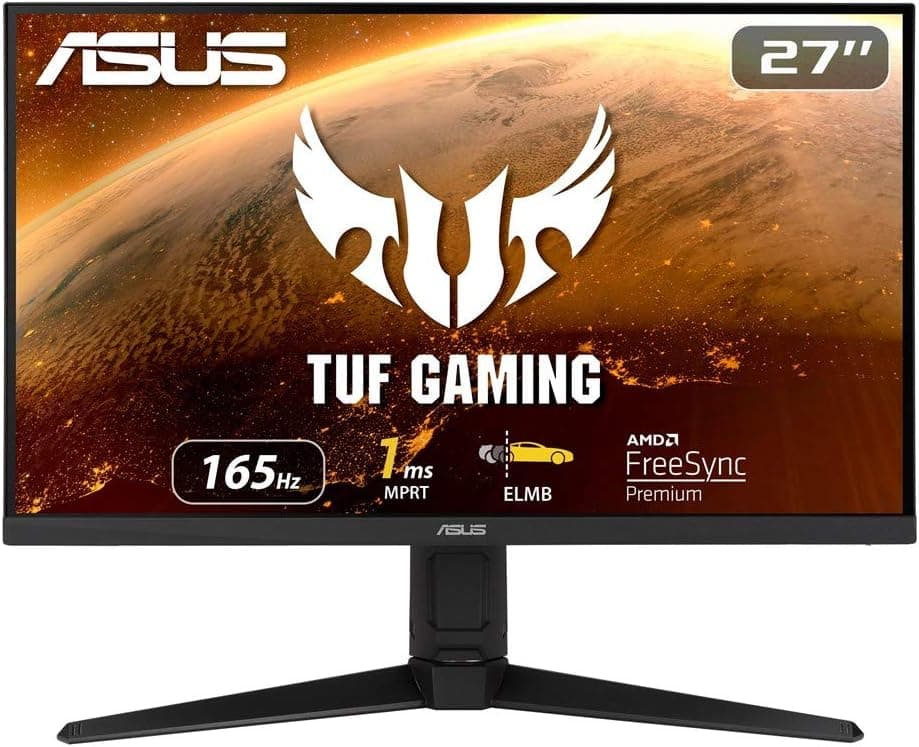
The ASUS TUF Gaming VG279QL1A is a 27-inch Full HD (1920×1080) IPS gaming monitor running at up to 165Hz. It offers two HDMI 2.0 inputs, one DisplayPort 1.2, and a stand with height adjustment and pivot.
This article focuses on the details that most often surprise buyers after the box is open.
Overview
In one sentence: this is a monitor for people who want frame rate rather than resolution. A 165Hz IPS panel at 1080p suits competitive titles — VALORANT, Apex Legends, Overwatch, CS-style shooters — where you want high frame rates without pushing the GPU hard.
Think of IPS here as the middle path: better viewing angles and more natural color than TN, less contrast than VA.
The trade-off is pixel density. Full HD across 27 inches works out to roughly 81ppi, noticeably coarser than a 24-inch 1080p panel (about 92ppi).
Users moving up from 24 inches sometimes report that text edges look softer. That is the central compromise of this product, and it is covered in detail below.
Amazon.co.jp reviews sit at 4.4/5 (88% positive) across 180 reviews as of June 2026 — a steady rather than spectacular distribution, the kind that usually means nothing is badly broken.
Panel and Refresh Rate in Practice
165Hz is in the zone where the jump from 60Hz is most obvious. Frame intervals shrink from about 16.7ms at 60Hz to roughly 6.1ms at 165Hz.
But the gap between 144Hz and 165Hz is under 1ms, and honestly hard to feel. The upgrade argument works from 60Hz, not from 144Hz.
Treat the "1ms" figure with care. On IPS panels this is usually an MPRT number achieved with backlight strobing (ASUS ELMB and similar), not a measured gray-to-gray value.
Strobing modes often reduce brightness and may be mutually exclusive with variable refresh rate. Check the product page for which mode the rating applies to.
Overdrive behaves the way IPS panels generally do: the maximum setting tends to introduce overshoot, visible as a bright halo trailing moving objects. Start from a middle setting and test with a bright object crossing a dark background.
This one adjustment changes perceived motion clarity more than most people expect.
Compatibility Guide
Inputs are two HDMI 2.0 ports and one DisplayPort 1.2.
For guaranteed 1080p at 165Hz, use DisplayPort first. HDMI 2.0 has the bandwidth for 1080p/165Hz in principle, but the actual ceiling depends on the GPU and cable implementation, and some setups cap out at 144Hz over HDMI.
If you can't reach 165Hz, check the port and cable before anything else.
Windows will not raise the refresh rate on its own. Go to Settings → System → Display → Advanced display and switch the refresh rate to 165Hz manually.
Most "my new high-refresh monitor feels the same" reports come down to this, the cable, or variable refresh rate left disabled.
On the GPU side, 1080p is no longer a trivial load. Hitting numbers near 165fps in competitive titles with reduced settings realistically calls for a current mid-range card or better.
Pinning a heavy modern AAA title at 165fps on maximum settings is difficult even at 1080p. The monitor sets a ceiling; your GPU and settings decide what you actually get.
For consoles, PS5 and Xbox Series X both output 1080p at up to 120Hz. This panel goes higher, but the console caps at 120Hz, so the extra headroom sits unused.
If the monitor is console-only, you are paying for refresh rate you cannot reach.
Physically, the included stand handles height adjustment and pivot, which is genuinely useful — portrait orientation works well for code, documents, and chat feeds. Note that even IPS panels shift in appearance when rotated, so verify before doing color-sensitive work in portrait.
If you plan to use a monitor arm, confirm VESA support and pattern size (100×100mm is typical for 27-inch panels) on the product page first.
Variable refresh rate (Adaptive-Sync / FreeSync-class) is common on gaming monitors in this class and generation, but confirm support and the operating range on the product page. Enabling it removes most tearing when frame rates fall short of 165fps.
How It Compares
In the 27-inch 1080p category, 240Hz models have moved down in price, so 165Hz is no longer the top of the stack. The deciding question is whether you can actually feed more than 165fps in the games you play.
| Axis | Where this monitor lands |
|---|---|
| Resolution | 1080p — easy on the GPU, low density at 27 inches |
| Refresh rate | 165Hz — huge over 60Hz, modest against 240Hz |
| Panel | IPS — good angles and natural color, weaker contrast than VA |
| Ergonomics | Height adjust plus pivot, strong for the price class |
The table makes 165Hz look middling, but satisfaction depends on balance rather than peak numbers. If you run 1080p on a mid-range GPU, 165Hz is close to the ceiling you can actually use, and the premium for 240Hz is hard to recover.
With a higher-end GPU, that same budget is better spent on 27-inch QHD or a 240Hz panel.
Product Info
Core specification: 27-inch IPS, Full HD 1920×1080, up to 165Hz, 1ms (as listed), two HDMI 2.0, one DisplayPort 1.2, height adjustment and pivot.
Having more than one input means you can leave a PC and a console connected and switch between them — a small feature that matters in daily use.
On price: the source data for this article contained figures that are implausible for this product class, so no specific amount is quoted here. Check the product page for the current price and judge it against what a 27-inch 1080p 165Hz IPS panel should reasonably cost.
This category also moves a lot with sales and exchange rates.
As of June 2026, Amazon.co.jp lists 180 reviews averaging 4.4/5 (88% positive).
That is not a huge sample, so it is worth reading the negative reviews specifically — they tend to reveal unit-to-unit issues such as dead pixels.
Best Use Cases
- FPS/TPS players upgrading from 60Hz — the biggest perceptible gain. At 1080p, a mid-range or better GPU can approach 165fps, so monitor and GPU stay in balance.
- Players staying at 1080p on purpose — moving to QHD or 4K raises GPU load sharply. Holding resolution and spending on frame rate is a reasonable call.
- Anyone who wants portrait mode — pivot and height adjustment come standard, no arm required.
- PC plus console households — two HDMI 2.0 inputs let you connect two consoles while DisplayPort stays reserved for the PC.
- Users who also do non-gaming work — IPS keeps color shift across viewing angles milder than TN, making it easier to live with outside games.
Things to Check Before Buying
First, an important warning: the Amazon listing data referenced for this article contained metadata from a different product. The manufacturer field named a brand other than ASUS, and the listed price was not plausible for a 27-inch 1080p monitor.
Listing records do sometimes carry errors like this. Before buying, confirm with your own eyes that the page images, title, and manufacturer field all point to the ASUS TUF Gaming VG279QL1A — marketplace sellers occasionally piggyback on the wrong catalog entry.
Second, the density question. At a typical 60cm viewing distance, some users find text edges on 27-inch 1080p noticeably soft.
If document work or coding is your main use, either choose QHD at 27 inches or drop to a 24–24.5-inch panel at 1080p.
Bigger is not automatically better here.
Don't expect much from HDR. Monitors in this class generally lack local dimming and high peak brightness, so even if HDR input is accepted, the result often looks close to SDR or slightly washed out.
If HDR is the goal, mini-LED or OLED is the category to look at.
Built-in audio, where present on gaming monitors, is usually adequate only for confirming that sound exists. Budget for separate speakers or a headset from the start.
Finally, an IPS-specific trait: "IPS glow," a faint whitish sheen in the corners on a black screen in a dark room. It is a panel characteristic, not a defect, and it bothers players of horror games and dark-scene-heavy titles most.
If black depth is your priority, VA or OLED fits better.
FAQ
Q. What do I connect to actually get 165Hz? A.
Try DisplayPort 1.2 first, then switch the refresh rate to 165Hz manually in Windows advanced display settings.
Use the bundled cable or one that meets spec.
Q. Is it worth upgrading from a 144Hz monitor? A.
Not for the refresh rate alone — the frame interval difference is under 1ms. You'd need another reason: panel type, size, or stand ergonomics.
Q. Does it work with PS5 or Xbox Series X? A.
Yes, over HDMI 2.0, at up to 1080p/120Hz.
The console caps at 120Hz, so the extra refresh headroom goes unused.
Q. Is 27-inch 1080p too coarse? A.
Coarser than 24-inch 1080p, yes. Most gamers stop noticing quickly; heavy text users often prefer QHD.
Sitting slightly farther back helps.
Q. Can I use a monitor arm? A.
Check VESA support and pattern size (typically 100×100mm) on the product page. The stock stand already covers height and pivot, so an arm isn't required.
Q. What about dead pixels? A.
Dead-pixel warranty terms vary by manufacturer and retailer. Read the policy before buying, and run full-screen solid-color checks soon after delivery.