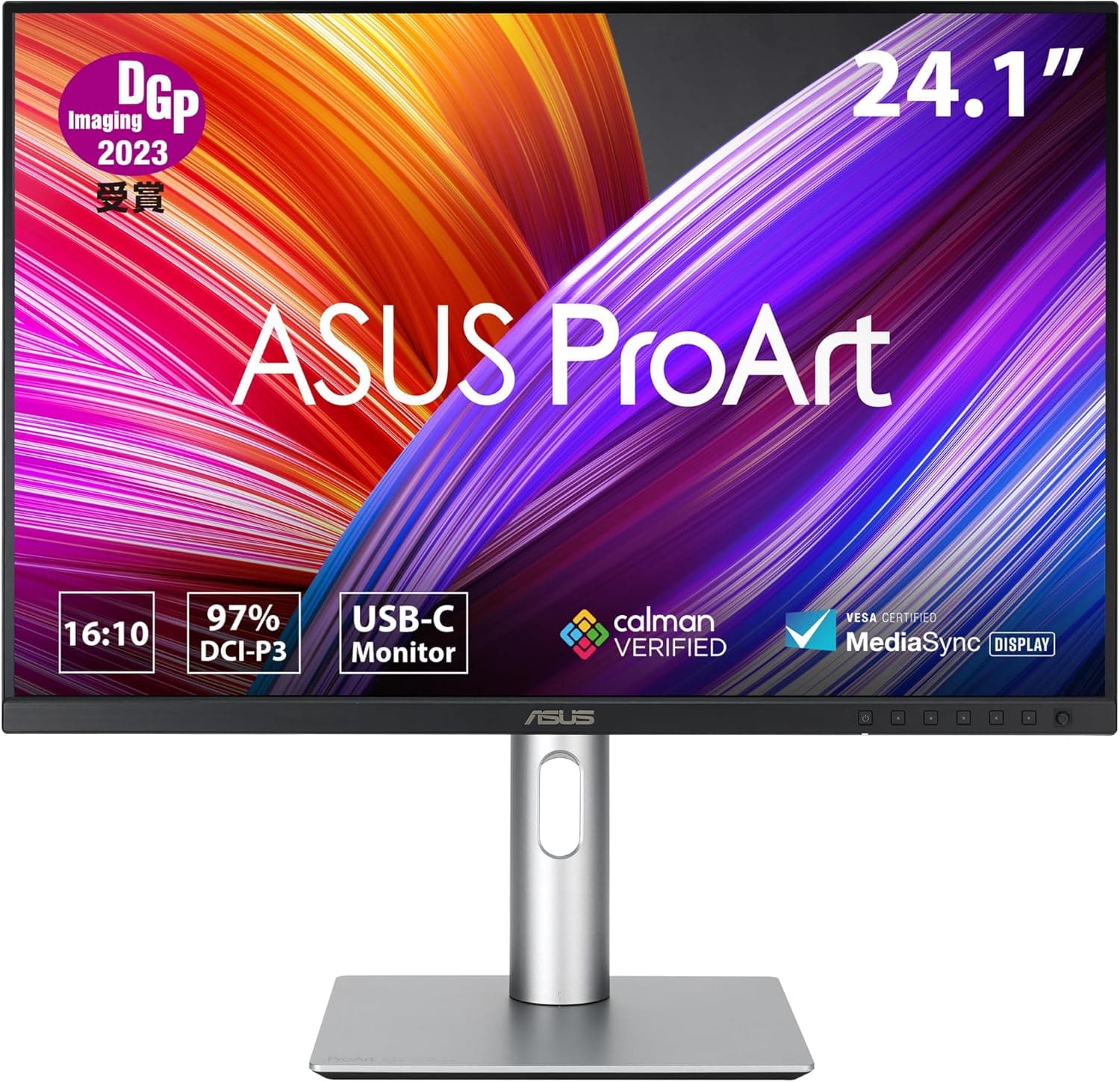
The ASUS ProArt PA248CRV pairs a 24.1-inch 1920×1200 (WUXGA) 16:10 IPS panel with factory calibration (Delta E < 2), 97% DCI-P3 coverage, and 96W USB-C Power Delivery.
This article covers what the spec sheet means in daily use — and, just as importantly, who should not buy it.
Overview
In short, this is a first color-reference display for someone who edits photos, video, or design work on a USB-C laptop. It packs color accuracy, a wide gamut, and a 96W USB-C dock into a manageable 24.1-inch footprint, so a MacBook or Windows laptop connects, charges, and gains USB ports through a single cable.
It is not for people whose work centers on HDR grading or shadow detail, who need 4K density for pixel-level retouching, or who also want high-refresh gaming. Those limits are real and are detailed below.
The Amazon.co.jp rating is 4.4 out of 5 (88% positive), but from only 23 reviews (captured 2026-06-01).
With such a small sample, one or two poor ratings move the average a lot — read the individual comments rather than trusting the number.
Why 16:10 (1920×1200) Matters
The aspect ratio defines this monitor's character. Against a 16:9 1920×1080 panel of the same class, you gain 120 vertical pixels — about 11% more height.
That sounds minor, but vertical pixels are the first thing toolbars, timelines, and layer panels consume, so the practical gain feels larger than the percentage.
Where it helps concretely:
- Showing one or two extra video timeline tracks
- Keeping Photoshop/Lightroom panels open without squeezing the canvas
- More visible lines in a code editor, or a sustained vertical split
- Viewing a portrait A4 page at a readable zoom level
The trade-off: 16:9 video plays with letterbox bars. If immersion in films and games is your priority, a 16:9 panel is the more natural fit.
This is height bought for work, not for viewing.
Compatibility Guide
Inputs are USB-C (DP Alt Mode), two DisplayPort 1.4 ports (daisy-chain capable), and two HDMI v1.4 ports.
The hub adds three USB 3.2 Gen 1 Type-A ports plus one Type-C.
It supports VESA 100×100mm mounting and weighs about 5.9 kg.
| Source | Recommended port | Watch out for |
|---|---|---|
| USB-C laptop (MacBook etc.) | Single USB-C | Video, up to 96W charging, and hub in one cable |
| Desktop GPU | DisplayPort 1.4 | Daisy-chaining a second panel requires GPU-side MST support |
| Consoles / older gear | HDMI v1.4 | Limited bandwidth; check the source device's output settings |
| Monitor arm / wall mount | VESA 100×100mm | Choose an arm rated comfortably above 5.9 kg |
Single-cable USB-C is the headline use case. 96W is generous for a 13–14 inch laptop; machines that draw closer to 100W under load may charge slowly or hold steady rather than gain while you work.
Check your original adapter's wattage and set expectations accordingly. Also confirm your laptop's USB-C port supports DisplayPort Alt Mode — data-only ports will not output video.
DisplayPort daisy-chaining is conditional. Two DP 1.4 ports allow chaining a second display, but only when the source GPU supports MST.
macOS handles MST differently from Windows, so for multi-monitor Mac setups, connecting each display to its own port (or using a suitable dock) is more reliable.
HDMI v1.4 is a deliberate compromise. At this resolution and 60Hz it is fine in practice, but do not count on it for future high-resolution or high-refresh devices.
Treat USB-C or DisplayPort as your primary link and HDMI as secondary.
Physically, 5.9 kg is not light for a 24-inch class display. If you plan to mount it on an arm, leave headroom on the load rating.
On a shallow desk, arm-mounting is genuinely worth it for the reclaimed depth.
Product Info
Key specs: 24.1 inches, 1920×1200 (WUXGA), 16:10, IPS, 350 cd/m² brightness, 1000:1 contrast, 5ms (GTG) response, 97% DCI-P3, 60Hz, USB-C PD 96W, about 5.9 kg, VESA 100×100mm.
Pricing was ¥39,555 on Amazon.co.jp as captured on 2026-06-12, and $288.99 on eBay US as captured on 2026-07-15.
Both are point-in-time figures that move with sales and exchange rates — always check the current listing before buying. Note that the entry labeled "Amazon US" in our source data carried the same yen figure and ASIN as the Japanese listing, so it should not be read as an overseas price.
The review score is 4.4 out of 5 (88% positive, 23 reviews, captured 2026-06-01).
For a factory-calibrated 24-inch class display, this sits clearly at the entry-to-mid tier of the ProArt lineup.
A calibration report is included. It documents how that specific unit measured at the factory, which is reassuring out of the box — but panel color drifts with hours of use.
For professional color work, plan on owning a colorimeter and re-profiling periodically. Factory calibration is a good starting point, not a permanent guarantee.
The 3-year zero bright dot warranty carries real value at this price. Stuck bright pixels are most visible on dark screens, exactly where photo and video work lives.
Coverage terms depend on whether you buy through official regional channels, so confirm on the listing.
How It Compares
Around this price, 24-inch displays fall into three camps, and picking the wrong one is easy:
- General-purpose IPS (sRGB-focused, cheaper) — plenty for office and web use. Wide gamut and factory calibration are wasted money if your output has no color standard to hit.
- High-refresh gaming panels (144Hz+) — the right call if motion smoothness leads. The PA248CRV's 60Hz is visibly slower, and not only in games.
- Color-focused creator panels (this tier) — budget spent on gamut, accuracy, and USB-C docking. The PA248CRV is the entry point here.
So the real question is not "how fast or how big for the money" but whether color accuracy is worth paying for in your workflow. It is cheap if your deliverables have a color target, and expensive if they do not.
First-Day Setup
A few minutes of setup makes a real difference:
- Pick the preset that matches your output. Use sRGB for web work and DCI-P3 for video.
Grading everything in wide gamut leads to washed-out saturation once the file hits the web. 2.
Turn the brightness down. 350 cd/m² is too bright indoors; roughly 100–140 cd/m² is a common working target under normal room lighting.
Judging color on an overly bright screen skews shadow adjustments. 3.
Verify power draw before going single-cable. Laptops needing more than 96W may drain slowly under sustained load.
- Leave OS scaling near 100%. 1920×1200 at 24.1 inches is not a high-DPI panel; enlarge text via per-app zoom instead of heavy system scaling.
Best Use Cases
- USB-C laptop users — video, charging, and a USB hub over one cable, with no separate dock to buy. Desk clutter genuinely drops.
- New photo/video editors, or anyone newly accountable for color — factory calibration and 97% DCI-P3 let you stop blaming the display when colors do not match.
- Programmers, writers, and layout workers who value height — those 1200 vertical pixels pay off every single day.
- People short on desk space — where 27 or 32 inches will not fit, 24.1 inches keeps the whole screen within easy view.
- Buyers planning to keep it for years — the 3-year zero bright dot warranty matters most to people staring at dark screens.
Before You Buy
1. 60Hz is not just a gaming issue. If you have used 144Hz or a 120Hz laptop screen, you will notice the stepping in window drags, scrolling, and cursor motion.
Coming from 60Hz, you will not.
2. 1000:1 contrast is typical IPS — blacks read as dark gray. If you grade dark footage or judge shadow detail, look at VA or OLED instead.
The same applies to HDR: 350 cd/m² cannot reproduce HDR content at its intended brightness. This panel is tuned to render SDR color accurately, and that is the correct way to read it.
3. 1920×1200 is roomy, not sharp. Pixel density at 24.1 inches will not satisfy pixel-level retouching or those who prize crisp small text.
A 4K panel at a similar price is a legitimate alternative — it is area versus detail.
4. 96W is a ceiling, not a constant. Attached peripherals and device settings change how power is allocated.
A laptop losing charge under heavy load is within normal behavior, not a fault.
5. Factory calibration fades. Strict color work eventually requires re-profiling with a measurement device.
Buying calibrated is not the same as staying calibrated.
6. Listing metadata can be wrong. Spec fields, brand entries, and price slots on retail pages sometimes carry another product's data.
In the source data used here, the "Amazon US" slot held the same yen price and ASIN as the Japanese listing, making it unusable as an overseas figure. Confirm the product image and title actually say ProArt PA248CRV, and take price, bundled items, and warranty terms from the current listing.
7. Remember the 23-review sample. 4.4 is a good score, but the sample is too small to reveal unit-to-unit variance or defect trends.
Read the comments rather than the average.
FAQ
Q. Can I run a MacBook over a single USB-C cable? A.
Yes, if the port supports DisplayPort Alt Mode — you get video, up to 96W charging, and the USB hub. Laptops drawing more than 96W may not gain charge during heavy work.
Q. Can I connect two monitors? A.
DisplayPort 1.4 daisy-chaining is supported, but it requires MST support on the source GPU, and macOS behaves differently.
For reliability, connect each display to its own port.
Q. Is it usable for gaming? A.
With 60Hz, 5ms (GTG), and Adaptive-Sync, slower-paced genres like RPGs and simulations are fine. For competitive FPS or fighting games, choose a high-refresh model.
Q. Do I still need a calibrator? A.
Not to get started — it ships calibrated. For strict professional color management, periodic re-profiling with a measurement device is recommended as color drifts over time.
Q. Does 16:10 hurt video watching? A.
Full-screen 16:9 video shows letterbox bars. The extra height is for productivity; for film and game immersion, 16:9 suits better.
Q. Will it fit a monitor arm?
A. Yes, VESA 100×100mm. At about 5.9 kg, pick an arm with comfortable load headroom.
Product Disclosure (Amazon)
- ASIN: B0CBT9CKNF
- Note: This article covers a manufacturer-made product based on Amazon listing details.