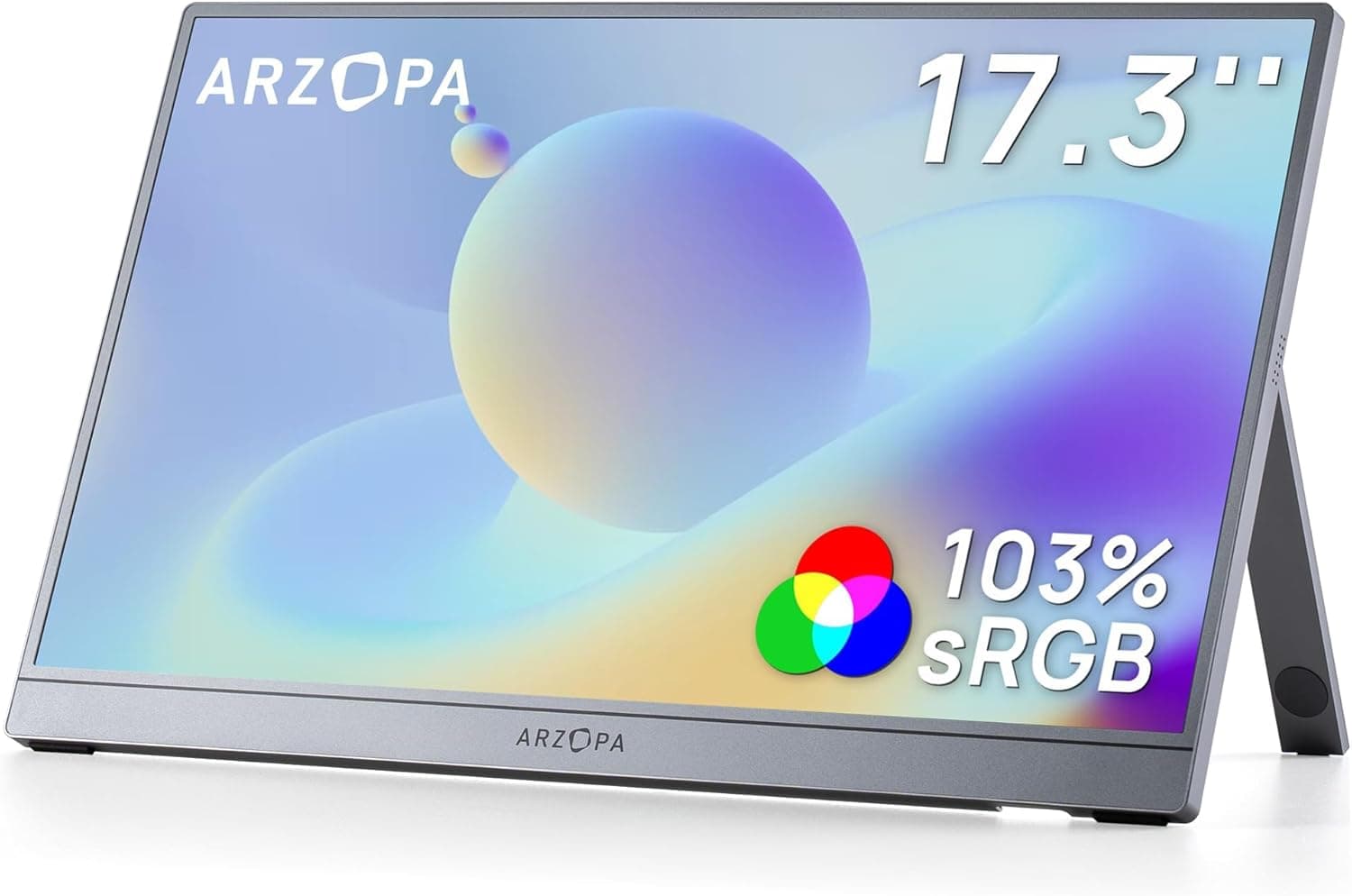
This article looks at the ARZOPA 17.3-inch Portable Monitor Z1C Plus (Gray / 1080p FHD / 103% sRGB / IPS), using the published specs and the collected review data to explain where it fits, what it can drive, and what you have to accept.
Overview
The ARZOPA Z1C Plus pairs a 17.3-inch panel — near the top end of the portable monitor category — with a Full HD (1920×1080) IPS display.
In short, it suits people who want a permanent reference screen next to a laptop, or who want to play a console in their own room instead of taking over the living room TV. It is not the right pick for competitive high-refresh gaming, or for anyone whose top priority is bag weight.
The panel combines a 103% sRGB gamut with a matte anti-glare finish. Many portable monitors ship with glossy surfaces, and in cafes or meeting rooms with overhead lighting, reflections turn into a constant annoyance.
The matte finish alone says a lot about the product's intent: usable away from a controlled desk.
Aspect ratio is 16:9 and the refresh rate is 60Hz. The built-in kickstand supports both landscape and portrait, so reading long documents or code in portrait is practical without carrying a separate stand — which matters more than you'd think at this size.
What Choosing 17.3 Inches Actually Means
The mainstream portable size is 15.6 inches; 17.3 is one class up.
Stretching the same 1920×1080 across a larger panel lowers pixel density and makes text physically bigger. That cuts both ways: text is comfortable at 100% scaling, but the screen is not ideal for pixel-level photo checks or fine UI work.
The accurate framing is not "bigger is better at the same resolution" — it is "the same amount of information, traded from sharpness into legibility."
More size also means more desk. A 17.3-inch 16:9 panel is roughly 38cm wide, so on a small cafe table it fills the surface once a laptop sits beside it.
Measure the desks you actually use before buying. For bags, it will not fit a 13–14 inch laptop sleeve; a backpack sized for a 15.6-inch laptop is the practical minimum.
Compatibility Guide
Ports are one HDMI and one USB-C (video and power). Nearly every compatibility failure in this category comes down to the USB-C side.
| Source | Connection | Watch out for |
|---|---|---|
| Laptop with USB-C DisplayPort Alt Mode | Single USB-C cable | Video and power over one cable; weak host power can cap brightness |
| Laptop without Alt Mode | HDMI + USB-C power | Video over HDMI, power separately — two cables |
| PS5 / Xbox Series X|S / Nintendo Switch | HDMI + USB-C power | Console USB ports may not supply enough power; use an adapter or power bank |
| Android phone | Single USB-C cable | Phone must support USB-C video output (Alt Mode) |
| Mac (USB-C / Thunderbolt) | Single USB-C cable | Works, but switch to external power if brightness is limited |
The biggest trap: having a USB-C port and outputting video over USB-C are two different things. Many laptop and phone USB-C ports handle charging and data only, with no DisplayPort Alt Mode.
On those devices a single cable shows nothing, and you need HDMI plus separate USB-C power. Check your device's spec sheet for "DisplayPort Alt Mode" or "video output" before ordering.
Power comes from USB-C (5V/3A or higher recommended) or an optional AC adapter. A 17.3-inch panel draws more than a 15.6-inch one, so an older 5V/2A charger often produces the classic symptom: it displays, but gets unstable as you raise brightness.
One USB PD charger removes almost all of this class of problem.
One console-specific note: PS5 and Xbox USB ports may not deliver enough power to drive the display reliably. Plan on powering the monitor from an AC adapter or power bank rather than from the console itself.
Product Info
Key specs: 17.3 inches / 1920×1080 (FHD) / IPS / 103% sRGB / matte anti-glare / 16:9 / 60Hz / HDMI ×1 + USB-C ×1 / built-in kickstand supporting landscape and portrait.
The pattern is clear — this design spends its budget on color, legibility, and easy setup, not on speed.
On reviews: as captured at the end of May 2026, the listing showed 4.6 out of 5 stars (92% favorable) across 47 reviews. That is a small sample, so it carries less statistical weight than a long-established model with thousands of ratings, but a 4.6 average is clearly good for an accessory in this segment.
Review counts move over time — check the current figure when you buy.
On price: the referenced Amazon.co.jp listing recorded ¥57,806 as captured on 31 May 2026. Frankly, that figure sits well above the usual band for a 17.3-inch FHD 60Hz portable monitor.
Prices in this category swing hard with sales, and a captured value can reflect a temporary listing or a different bundle. Do not treat that number as a decision input — check the current price on the product page. The overseas marketplace entry had no confirmed figure at capture time, so no amount is quoted here.
How It Plays in Practice
As a laptop second screen, the best use is offloading anything you want permanently visible: chat, reference docs, a video you're following. Keep primary work on the laptop panel and push the persistent stuff to the 17.3-inch screen.
Since it runs at 60Hz, people sensitive to cursor smoothness should keep their main display as the high-refresh one.
Portrait orientation is a genuine strength here because the kickstand supports it natively. You still need to rotate the display in the OS settings on Windows or macOS, and some apps lay out poorly in tall aspect ratios — try your main tools once before committing to it.
For gaming, everything hinges on accepting the 60Hz ceiling up front. RPGs, strategy, adventure titles, and handheld console output are all fine.
If you seriously play shooters or fighting games, the same money spent on a 144Hz+ desktop monitor will make you happier.
Best Use Cases
- Business travelers who want dual screens on the road. With an Alt Mode laptop it's one cable, and setup or teardown takes seconds. The large area suits comparing documents side by side.
- Console players who don't want to occupy the living room TV. Connect a PS5, Xbox, or Switch over HDMI and play in your own room — fine for anything that doesn't need high frame rates.
- Light creative users who care about consistent color. A 103% sRGB gamut is adequate for web photo checks and rough grading (not for strict print or color-managed work).
- Anyone who requires a matte panel. In a bright office or by a window, the difference from glossy is not subtle.
- Owners of Android phones with USB-C video output. Mirror or extend the phone for video and light document work.
Before You Buy
1. 60Hz is a design choice, but set your expectations. The product name includes "gaming monitor" while the panel runs at 60Hz.
This is not a competitive-play display, and misreading that is the single most common source of disappointment.
2. Single-cable USB-C depends entirely on the host. If your source device's USB-C lacks DisplayPort Alt Mode, one cable will not work.
Buying on the assumption that "it has USB-C, so it's fine" and then needing an HDMI cable plus a charger is the classic mistake in this category.
3. Underpowering causes instability. At 17.3 inches, insufficient power shows up as dim output, flicker, or dropped signal.
A USB PD charger is the most reliable fix.
4. Be realistic about "portable." It travels, but it is noticeably bulkier than 15.6-inch or 13-inch models.
If it goes in a commuter bag daily, a smaller size will likely age better.
5. Don't count on speakers or HDR. The published specs cover resolution, panel, gamut, ports, and stand — nothing about audio quality or HDR.
Plan on getting sound from the source device or headphones.
6. Verify price and listing details yourself. The price this article referenced (¥57,806, captured end of May 2026) is out of line with the class.
On top of that, retail listings sometimes carry registration data — manufacturer, model number, bundled items — that doesn't match the actual product. Cross-check the price, model, and package contents against the listing images and title before ordering, especially that the model reads "Z1C Plus" in 17.3-inch gray.
FAQ
Q. Will one USB-C cable work with my laptop? A.
Only if your laptop's USB-C supports DisplayPort Alt Mode. If not, use HDMI for video plus USB-C for power.
Check the spec sheet.
Q. Does it work with PS5 or Xbox? A.
Yes, over HDMI. Power the monitor from an AC adapter or USB PD charger rather than the console's USB port.
Output tops out at 1080p/60Hz.
Q. Can I use it in portrait?
A. Yes — the built-in kickstand supports portrait. Rotate the image in your OS display settings.
Q. Does it work with iPhone or iPad? A.
Devices with USB-C and video output support will work over USB-C. Lightning devices need an adapter, so confirm your model first.
Q. Can a power bank run it? A.
A bank that reliably delivers 5V/3A or more, ideally USB PD, should work. Weaker banks tend to get unstable at higher brightness.
Q. 17.3 inches or 15.6 inches? A.
Choose 17.3 if it mostly lives on a desk; 15.6 or smaller if you carry it daily.
Both show the same 1920×1080, so decide on text size and desk space.