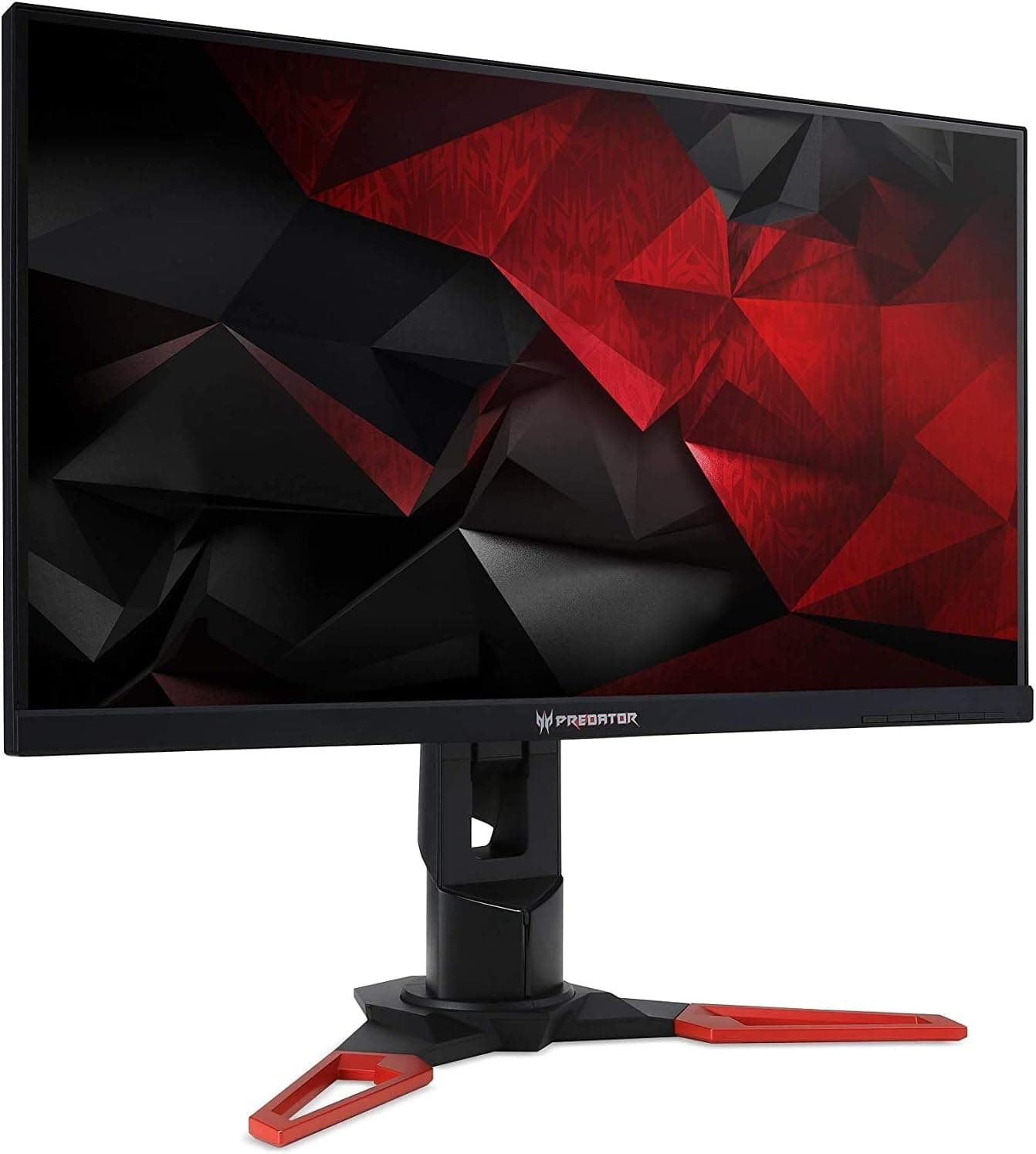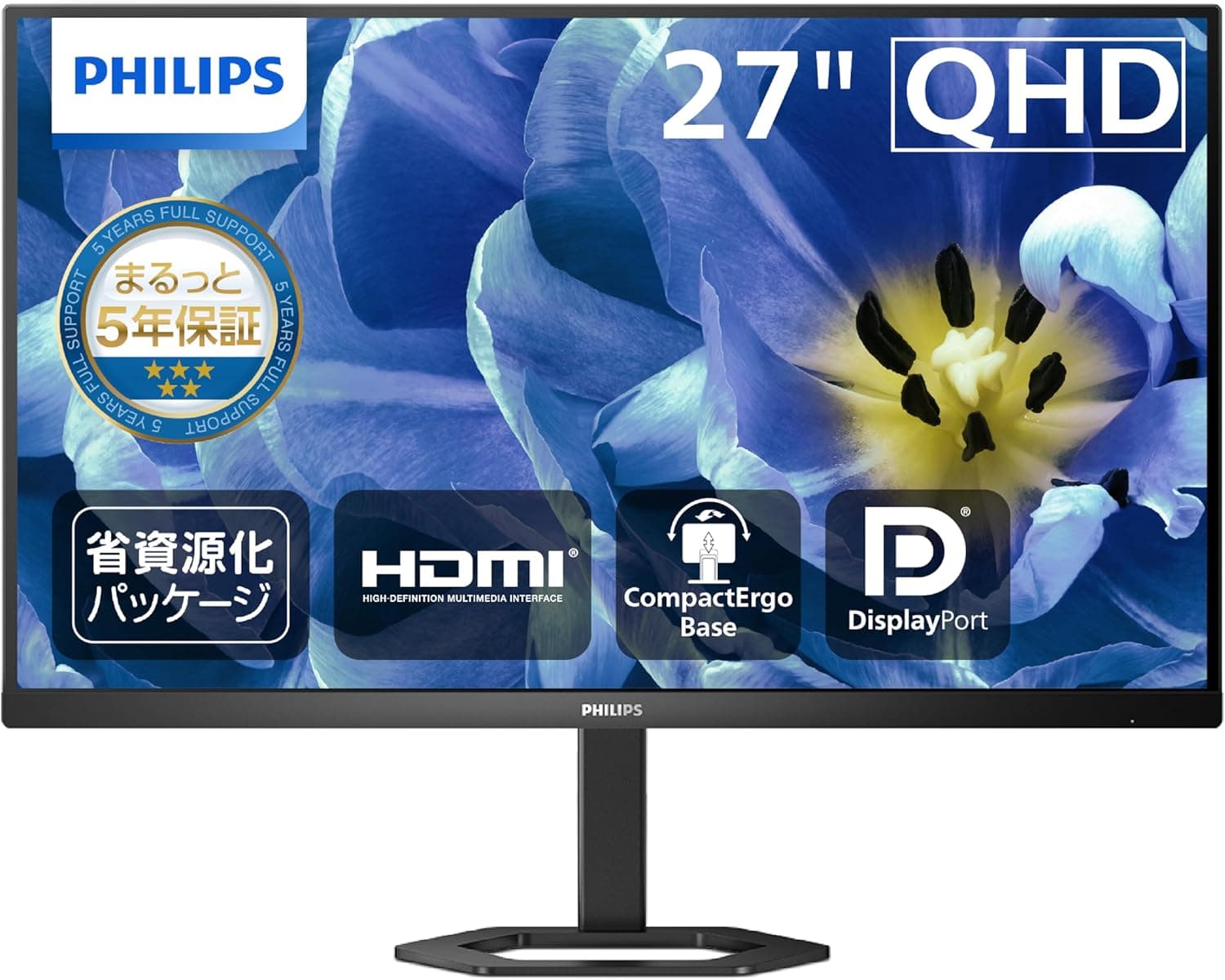
The PHILIPS 27E1N5500B/11 pairs a 27-inch WQHD (2560x1440) Fast IPS panel with a 100Hz refresh rate. This article goes past the spec sheet to answer the questions buyers actually have: what it works with, where you have to compromise, and who should not buy it.
Overview
This is a general-purpose monitor that puts 27-inch WQHD, IPS, and 100Hz into an accessible price bracket. The short version: it suits people who stare at text and browsers all day and game on the side.
It is not the right pick if you want a competitive esports display or an HDR/color-critical panel.
The panel is Fast IPS with 178°/178° viewing angles. Response time is listed as 1ms MPRT / 4ms GtG.
Note the distinction: 1ms is the MPRT figure, which reflects perceived blur including backlight behavior, while actual pixel transitions sit closer to the 4ms GtG number. At 100Hz a frame lasts 10ms, so 4ms GtG is comfortably fast enough for normal use.
Color coverage is 121.46% sRGB (CIE1931) and 101.87% NTSC (CIE1976).
Brightness is 250 cd/m2. The 80,000,000:1 contrast figure is DCR (dynamic contrast) and is not the static contrast you perceive on a still image — IPS panels typically land near 1000:1, so deep blacks in a dark room are not this panel's strength.
User feedback, captured June 2026, stands at 88 reviews averaging 4.4 out of 5 stars (an 88% score).
The sample is small but consistent for this class.
Connectivity & Compatibility
Guide
Inputs are one DisplayPort 1.2, two HDMI 2.0, and a headphone jack.
Importantly, bandwidth is not a limitation here: 2560x1440 at 100Hz in 8-bit RGB needs roughly 9Gbps, which fits inside both DisplayPort 1.2 (21.6Gbps) and HDMI 2.0 (18Gbps).
You can hit 100Hz on either connector.
| Item | Value | What it means in practice |
|---|---|---|
| Resolution | 2560x1440 (WQHD) | ~1.8x the working area of Full HD |
| Refresh rate | 100Hz | A clear step up from 60Hz, short of competitive play |
| Inputs | DP 1.2 x1 / HDMI 2.0 x2 | Three sources at once; no USB-C power delivery |
| VESA | 100x100mm | Works with standard monitor arms |
| Stand | Height, tilt, swivel, pivot | Portrait orientation supported |
Any GPU with DisplayPort 1.2 or HDMI 2.0 will drive WQHD at 100Hz regardless of generation.
However, plugging it in usually leaves you at 60Hz. On Windows, go to Settings → System → Display → Advanced display and select 100Hz manually.
This is the single most common reason people report "it doesn't feel any different." macOS users change it under System Settings → Displays.
Adaptive-Sync is supported for reduced tearing and stutter with compatible GPUs. The variable refresh range is not published in the data available here, so check the product page or the monitor's OSD for the exact window.
For consoles, HDCP 2.2 support means PS5 and Xbox Series X connect without issue.
The caveat is high refresh: console 1440p/120Hz output often assumes HDMI 2.1, so on this HDMI 2.0 display you should expect 60Hz.
If console 120Hz is your goal, look elsewhere.
VESA 100x100mm mounting works with standard arms and wall brackets. The power supply is internal, so a single AC cable runs the display — no external brick under the desk, which matters for clean arm-mounted setups.
Product Info
Key specs: 27-inch, 2560x1440 WQHD, Fast IPS, 100Hz, 1ms MPRT / 4ms GtG, 250 cd/m2, 178°/178° viewing angles, 121.46% sRGB and 101.87% NTSC coverage.
Inputs are DisplayPort 1.2 x1, HDMI 2.0 x2, and a headphone output.
The stand offers full height, tilt, swivel, and pivot adjustment, plus VESA 100x100mm.
Pricing was ¥25,800 including tax on Amazon.co.jp as captured on 12 June 2026.
Monitor prices move a lot with sales and stock, so always confirm the current figure on the product page before buying. The overseas marketplace entry (eBay) returned only a search listing, with no confirmed amount.
Two things set it apart at this price. First, the fully adjustable stand — height plus pivot is often cut down to tilt-only in this bracket.
Second, the five-year warranty, notably longer than the usual one to three years, which changes how long you can plan to keep it.
In the box: HDMI cable (1.8m), DisplayPort cable (1.8m), power cable, quick start guide, warranty card, and stand assembly.
Both video cables are included, so nothing extra is needed on day one.
How It Compares
Monitor buying at this size comes down to picking two of three: resolution, refresh rate, and black levels. This model prioritizes resolution while keeping refresh at a workable 100Hz floor.
Similarly priced alternatives stay at 1920x1080 and push toward 240Hz. Those are clearly smoother in motion, but 27 inches of Full HD means lower pixel density and visibly coarser text.
Going the other way, 31.5-inch 4K and OLED panels look better but sit a price tier up.
If your screen time is mostly text, spreadsheets, and code, 27-inch WQHD (about 109ppi) is the sweet spot between crisp glyphs and usable desktop area — and 100Hz makes scrolling and window dragging feel distinctly better than 60Hz. That "best compromise for real work" position is this monitor's character.
Best Use Cases
- Remote and office workers — WQHD gives roughly 1.8x the pixels of Full HD, enough for a browser and a document, or an IDE and a terminal, side by side.
- Developers and writers who want portrait mode — pivot support makes code review, long-form drafts, and PDF reading far more comfortable, and it is rare at this price.
- Arm-mount users — VESA 100x100mm plus an internal PSU keeps cabling simple.
- Casual gamers — 100Hz and 4ms GtG are plenty for action, racing, and open-world titles.
- Long-term owners — the five-year warranty is one of the few features that justifies keeping a monitor past the usual replacement cycle.
Conversely, if your use is gaming-first, this is not the buy. The same budget spent entirely on refresh rate will make you happier.
Real-World Notes
250 cd/m2 is fine for indoor office lighting, but may feel dim if direct sunlight hits the screen. Decide where it will sit before you buy if your room is bright.
A 121% sRGB gamut is wide, not accurate. Panels that exceed sRGB render web images and UI elements more saturated than intended unless you use an sRGB clamp mode.
If color matters, check whether the OSD offers an sRGB preset and use it.
No built-in speakers are listed in the specifications. Plan on routing audio out through the headphone jack to external speakers or a headset.
Things to Check Before Buying
1. 100Hz beats 60Hz clearly, but is not competitive-grade. Misreading this causes the most regret.
For Valorant or CS-style play, choose 144Hz or ideally 240Hz. Here, 100Hz is about smoother desktop use and casual gaming.
2. The 80,000,000:1 contrast rating is DCR, not real contrast. Dynamic contrast is derived by ramping the backlight per scene and says almost nothing about black depth in a dark movie.
For dark-room viewing, consider VA or OLED.
3. Do not expect HDR. At 250 cd/m2 with no local dimming, HDR content cannot be shown as intended. Treat this as an SDR-only display.
4. No single-cable USB-C docking. Inputs are DisplayPort and HDMI only — no USB hub, no Power Delivery.
Laptop users who want one-cable docking need a separate hub or adapter.
5. Color-critical work needs your own calibrator. 121% sRGB describes size, not accuracy, and no per-unit factory calibration (such as a delta-E guarantee) is documented.
For print matching or client video work, budget for a colorimeter or pick a color-managed model.
6. Watch for listing metadata mismatches. In the collected pricing data, an entry labeled "Amazon US" actually pointed to an Amazon.co.jp URL with a yen price (¥25,800), duplicating the Japanese entry.
That kind of listing inconsistency — region, model number, compatibility notes — does happen on retail pages. Before ordering, confirm from the product images and title that you are looking at the 27E1N5500B.
This series also includes a 24-inch version (24E1N5500B), and buying the wrong screen size is a genuinely common mistake.
FAQ
Q. Will it run 120Hz from a PS5 or Xbox Series X? A.
Inputs top out at HDMI 2.0, and console 1440p/120Hz output often assumes HDMI 2.1, so expect 60Hz.
If console high-refresh is the goal, choose an HDMI 2.1 display.
Check the actual mode in your console's video output settings after connecting.
Q. Can I get 100Hz over HDMI? A.
Yes, by bandwidth math — 2560x1440 at 100Hz fits within HDMI 2.0.
Your PC may not select it automatically, so set it explicitly in your OS display settings.
Q. It is still running at 60Hz. What now? A.
Almost always an OS setting. On Windows: Settings → System → Display → Advanced display, then pick 100Hz.
If that fails, use the bundled DP/HDMI cable and update your GPU drivers.
Q. Will text be too small? A.
27-inch WQHD is about 109ppi, which is readable at 100% scaling. If it feels small, 125% scaling still leaves you with more usable area than Full HD.
Q. Is it good for photo or video editing? A.
Fine for hobby work. For professional color matching, confirm the OSD has an sRGB mode and plan on calibrating with a colorimeter.
Q. Can I mount it on an arm? A.
Yes, VESA 100x100mm is supported. Check that your arm's weight rating covers the panel weight without the stand, as listed on the product page.
Q. Does it have speakers?
A. No built-in speakers are listed. There is a headphone output for external speakers or a headset.
Product Disclosure (Amazon)
- ASIN: B0F1QY415D
- Note: This article covers a manufacturer-made product based on Amazon listing details.