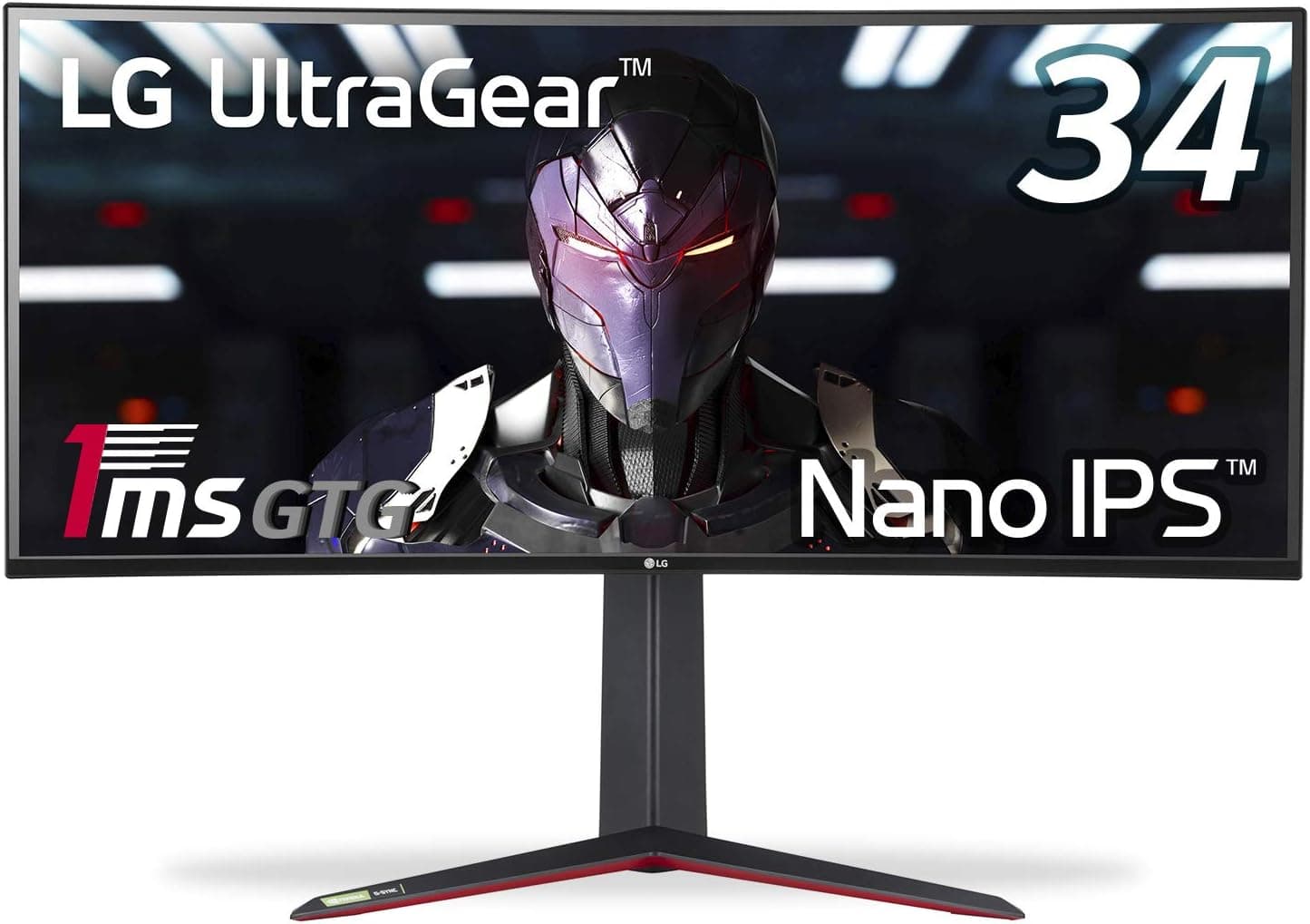
The LG UltraGear 34GN850-B pairs a 34-inch, 3440×1440 curved ultrawide panel with Nano IPS color and a 144Hz refresh rate. Rather than restating the spec sheet, this article focuses on the questions buyers actually have: will your PC really hit 144Hz, does the 1900R curve get in the way of work, and where do you have to compromise?
Overview
This is a high-mid-range 21:9 gaming monitor: 3440×1440 resolution, Nano IPS panel, 144Hz, 1ms (GtG) response, and DisplayHDR400 certification. It supports both AMD FreeSync Premium and NVIDIA G-SYNC Compatible, so tear-free variable refresh works regardless of your GPU brand.
Positioning-wise, it is a balance play — not the raw speed of TN, not the deep blacks of VA, but wide color (DCI-P3 98%) with genuinely fast response. On Amazon.co.jp it holds 127 reviews at 4.6 stars (92% positive, as captured 2026-06-04), which is a stable record for a monitor several years past launch.
In one line: this is the monitor for someone moving up from a 27-inch 16:9 display who wants a wider field of view. It is not the right answer for competitive players chasing 240Hz+, nor for anyone who wants inky blacks in a darkened room.
Compatibility Guide
Start with the connection. Inputs are two HDMI 2.0 ports and one DisplayPort 1.4.
Full 144Hz is available over DisplayPort only; HDMI runs at a reduced refresh rate because HDMI 2.0 lacks the bandwidth for 3440×1440 at high refresh.
Most "my 144Hz monitor is stuck at 60Hz" reports come down to one of two things: still being plugged into HDMI, or never raising the refresh rate in Windows display settings. Use the bundled DisplayPort cable, then explicitly select 144Hz under advanced display settings.
Check your GPU too. At roughly 1.34× the pixels of 2560×1440 and about 1.8× those of 1080p, 3440×1440 is not a light load.
Any GPU with a DisplayPort 1.4 output will drive the panel, but "it displays" and "it renders 144fps" are different claims.
Where frame rates fall short, enabling FreeSync Premium / G-SYNC Compatible still makes gameplay feel noticeably smoother.
On placement, the stand offers 110mm height adjustment, tilt from -5° to 15°, and a 100×100mm VESA mount. Ultrawides are physically wide, so measure your desk before ordering.
A 34-inch 21:9 panel is close to a 27-inch 16:9 stretched sideways, and on a shallow desk the 1900R curve brings the edges closer to you. A monitor arm helps you center your eyes on the curve and frees up desk space.
The built-in USB 3.0 hub (1 up / 2 down) lets you consolidate keyboard and mouse receivers at the display.
Consoles need a caveat. PS5 and Xbox Series X will connect and display, but consoles generally do not output 21:9, so most titles render 16:9 with pillarbox bars on either side.
If your usage is console-first, the ultrawide advantage largely disappears — this monitor earns its keep on a PC.
Product Info
| Item | Value |
|---|---|
| Screen Size | 34 inches |
| Resolution | 3440×1440 |
| Refresh Rate | 144Hz |
| Response Time | 1ms (GtG) |
| Panel Type | Nano IPS |
| Curvature | 1900R |
| Brightness | 400 cd/m² (typical) |
| Contrast Ratio | 1000:1 |
| Color Gamut | DCI-P3 98% |
| HDR Certification | DisplayHDR400 |
| Inputs | HDMI 2.0×2, DisplayPort 1.4×1 |
| USB Hub | USB 3.0 (1 up / 2 down) |
The entries that matter most in daily use are Nano IPS, DCI-P3 98%, and that 1000:1 contrast ratio. Nano IPS keeps IPS viewing angles while widening the gamut, which helps in games and in photo or video work alike.
But 1000:1 is ordinary for IPS: you will not get VA-like black depth, and IPS glow in dark scenes is structural, not a defect.
Pricing on Amazon.co.jp was ¥72,751 as captured on 2026-06-12 (ASIN: B0872HGDFP).
Prices move often with sales and stock, so always confirm the current figure on the product page — the number here is a snapshot from that date. The same page listed 127 reviews at 4.6 stars as of 2026-06-04.
Product Disclosure (Amazon)
- ASIN: B0872HGDFP
- Note: This article covers a manufacturer-made product based on Amazon listing details.
How It Compares
| Axis | Where the 34GN850-B wins | Where alternatives win |
|---|---|---|
| 1080p 240Hz-class panels | Resolution, workspace, color gamut | Peak frame rate, lighter GPU load |
| OLED gaming monitors | No burn-in worry, sustained brightness | Black depth, response, convincing HDR |
| 32-inch 4K 16:9 | Horizontal view, 21:9 immersion | Pixel density, video playback without bars |
You buy an ultrawide for horizontal field of view and workspace, not for resolution per se. If you want to shave a frame off in a shooter, a fast 1080p panel is the more rational choice; if you mostly watch films, a 16:9 4K display is simpler.
But for racing, open-world, flight sims, and "browser next to editor" work, this width is hard to replace.
Setup Tips That Matter
Three things to do on day one. Connect over DisplayPort and set 144Hz in the OS.
Enable FreeSync / G-SYNC Compatible in your GPU control panel. And do not max out overdrive — pushing the response setting to its highest level tends to produce visible overshoot (white trailing) in fast motion.
Start from a middle setting and tune from there.
Wide gamut can also work against you: on sRGB-oriented sites and older apps, colors look oversaturated. Use the sRGB mode for web or photo color work and keep a separate preset for gaming.
Best Use Cases
- Players of racing games, flight sims, open-world titles, and MMOs, where field of view translates directly into immersion.
- Anyone upgrading from a 27-inch 16:9 display who wants to keep 1440 vertical pixels while gaining width.
- Users tired of the bezel gap in a dual-monitor setup who want windows side by side on one panel — browser plus editor, streaming software plus game, or timeline-based video editing.
- Buyers who want a wide-gamut IPS without giving up refresh rate.
- Shoppers who prefer a product with a proven track record — 127 reviews at 4.6 stars as captured 2026-06-04.
Things to Know Before Buying
1. HDMI will not give you 144Hz. This is the most common trap.
If your laptop or dock only exposes HDMI, you cannot use the monitor's headline feature. Confirm you have a DisplayPort output before you buy; if you plan to use USB-C video out, whether DisplayPort Alt Mode has the bandwidth depends on your specific hardware.
2. Do not expect much from HDR. DisplayHDR400 is an entry-level certification meaning the panel accepts HDR signals — it is not comparable to local-dimming HDR.
With 1000:1 IPS contrast, dark scenes look gray rather than black. For dark-room movie viewing, VA or OLED will disappoint you less.
3. Not everything supports 21:9. Most PC games do, but some titles, cutscenes, and older games letterbox or push UI elements awkwardly to the edges.
Consoles, as noted, generally render 16:9. Most streaming video is 16:9 too, so this is a poor choice if watching video is your main use.
4. Measure your desk. A 34-inch 21:9 panel is wide, and on a shallow desk it sits too close, forcing large eye movements.
The 1900R curve is designed for close viewing, but well under about 60cm you will struggle to track the edges.
5. Your GPU has to keep up. Buying a 144Hz monitor does not produce 144fps.
Check whether your current card reaches your target frame rate at 3440×1440; variable refresh helps when it doesn't, but set expectations realistically.
6. Verify price and listing details yourself. The price here is a 2026-06-12 snapshot and has likely changed.
Amazon listings also occasionally carry manufacturer or model-number metadata that does not match the actual product, and with ultrawides a single trailing letter can change the panel or refresh rate — confirm from the product image and title that you are buying the 34GN850-B.
FAQ
Q. What refresh rate can I get over HDMI? A.
Not 144Hz. HDMI 2.0 lacks the bandwidth for 3440×1440 at high refresh, so it is capped lower; the exact ceiling depends on your source device.
Use the bundled DisplayPort cable for full performance.
Q. Does it work with a PS5, and will I get ultrawide? A.
It connects and displays, but the PS5 does not output 21:9, so most games appear in 16:9 with black bars at the sides. For console-first setups, a 16:9 monitor uses the panel more efficiently.
Q. Is it good for FPS games? A.
144Hz with 1ms GtG is perfectly usable, but if you are chasing 240Hz+ for competitive play, this is not the pick. 21:9 also changes how field of view is handled in some titles, which takes adjustment.
For casual to intermediate play it is fine.
Q. Can I use it for photo or video editing? A.
Yes — Nano IPS with DCI-P3 98% is well suited, and a wide timeline is a real advantage in video work. Switch to sRGB mode for sRGB-targeted work, and calibrate if you need strict color accuracy.
Q. Can it replace dual monitors? A.
It is narrower than two 27-inch panels, but without a bezel down the middle it is comfortable for two or three tiled windows. If you truly need the area of two displays, pair this with a secondary monitor.
Q. Does it support VESA mounting?
A. Yes, 100×100mm. A 34-inch panel is heavy, so choose an arm with adequate weight capacity.