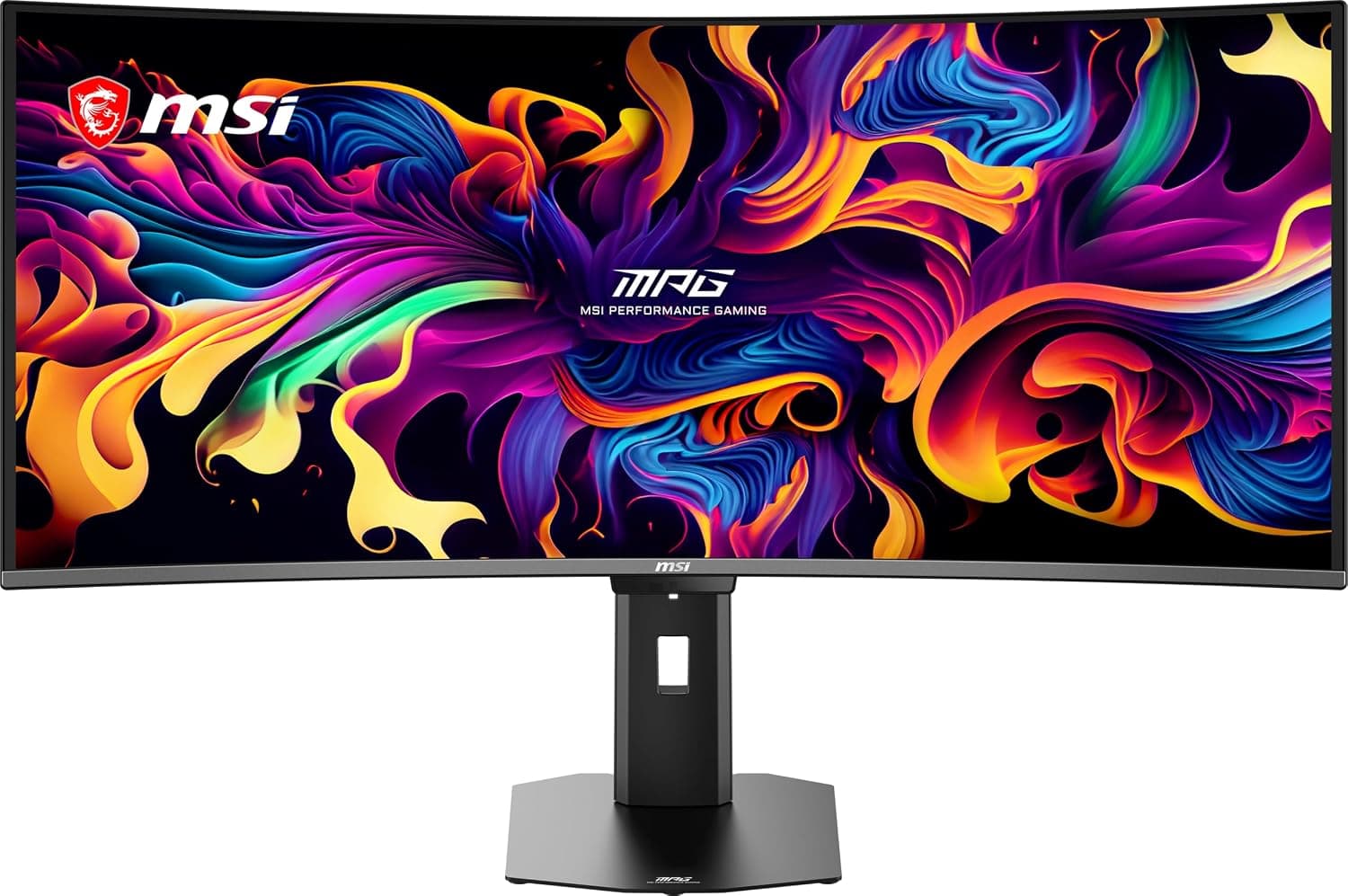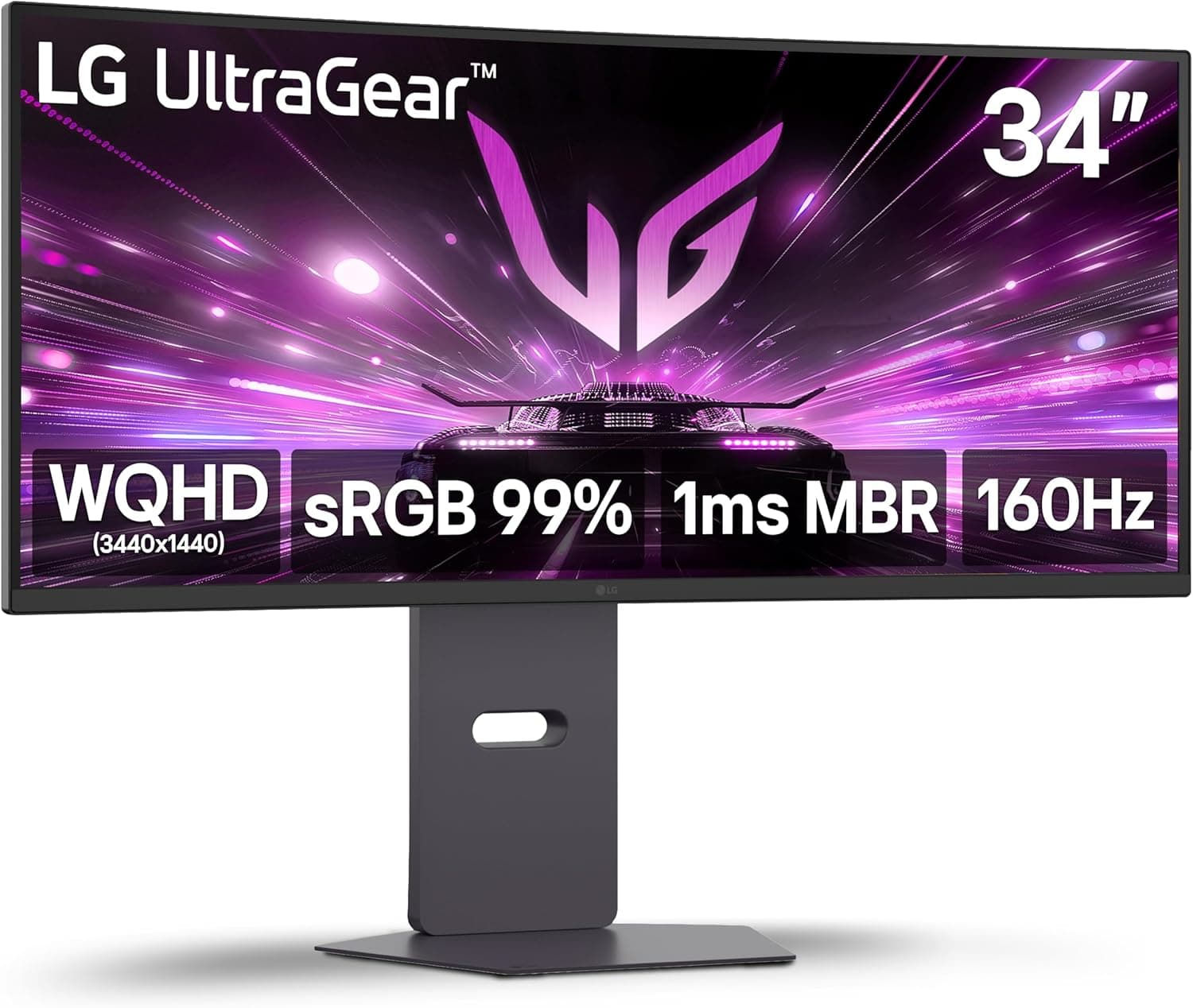
The LG 34G600A-B pairs a 34-inch curved panel at 3440×1440 (WQHD ultrawide) with a 160Hz refresh rate and AMD FreeSync Premium. This article works through what that combination is actually good at, and who should look elsewhere, using the published specifications and the available Amazon rating data.
Overview
The short version: this is a display for people who want desktop space and immersion from a single screen. At 3440×1440 you can keep a browser and an editor side by side, or a timeline and a preview window, without either feeling cramped.
In games, the curve and the 21:9 field of view pay off most in racing titles, flight sims, and open-world games. The 160Hz panel plus FreeSync Premium suits ultrawide resolutions well, since frame rates at this pixel count tend to fluctuate and variable refresh smooths that out.
HDR10 support, built-in speakers, a reader mode, and both HDMI 2.1 and DisplayPort inputs round out the confirmed feature list.
What it is not: an OLED-grade contrast machine, or a 240Hz-plus esports panel. Those trade-offs are covered honestly further down.
What the resolution and 160Hz actually mean
3440×1440 works out to roughly 4.95 million pixels — about 1.34× a 16:9 WQHD panel (2560×1440, ~3.69 million) and roughly 60% of 4K (3840×2160, ~8.29 million).
In load terms it sits between the two.
| Resolution | Total pixels | Relative to 3440×1440 |
|---|---|---|
| 1920×1080 | ~2.07M | ~0.42× |
| 2560×1440 | ~3.69M | ~0.75× |
| 3440×1440 | ~4.95M | 1.0 |
| 3840×2160 | ~8.29M | ~1.67× |
The practical takeaway is that a game running comfortably at 1440p costs roughly a third more to render on this panel. To actually sit near 160Hz outside of competitive or lightweight indie titles, a mid-to-high tier GPU is a realistic starting point, and for demanding modern releases at high settings you should plan on using upscaling (DLSS or FSR) as part of the equation.
If your frame rate simply lives somewhere between 60 and 120fps, FreeSync Premium does a lot of the perceptual work for you.
Compatibility Guide
Video inputs are HDMI 2.1 and DisplayPort.
DisplayPort is the most reliable route to 3440×1440 at 160Hz; HDMI 2.1 has ample bandwidth provided both your GPU and your cable are genuinely HDMI 2.1.
The most common failure here is an older HDMI 2.0-era cable silently capping refresh rate or color depth.
In practice, the vast majority of "I can't select 160Hz" complaints trace back to either the cable or Windows display settings still sitting at 60Hz. The highest refresh rate is not always selected automatically, so open your display settings after connecting and confirm.
On the GPU side, outputting an ultrawide resolution is not an issue for any modern card. Game support is the real variable.
Native 21:9 support has become common, but some competitive online titles deliberately restrict field of view for fairness, resulting in pillarboxing or a locked 16:9 image. Check the titles you actually play before buying.
Consoles require a clear-eyed compromise. The PlayStation 5 does not output ultrawide, so a 21:9 monitor shows a 16:9 image with black bars on both sides; Xbox consoles are similar.
If your usage is console-first, the ultrawide shape itself works against you and a 16:9 4K panel will make you happier.
Physical fit matters too. A 34-inch ultrawide is roughly 80cm wide, so a desk narrower than about 100cm will start conflicting with speakers or a mic arm.
A curved panel also projects further forward than a flat one when pushed against a wall. VESA mount support, stand height adjustment range, and the exact curvature radius (1800R, 1500R, etc.) are not stated in the listing title, so confirm them on the product page if you plan to use a monitor arm.
Product Info
The specifications confirmed by the listing are: a 34-inch curved panel, 3440×1440 WQHD ultrawide resolution, a 160Hz refresh rate, AMD FreeSync Premium, HDR10 support, built-in speakers, a reader mode, and HDMI 2.1 plus DisplayPort inputs.
On reception, Amazon.co.jp data captured in June 2026 shows 74 reviews averaging 4.5 out of 5 stars, a 90% positive score.
Seventy-four reviews is not a statistically large sample, but a 90% distribution at least suggests no widespread reports of DOA units or a fundamental design flaw. With a small sample the average moves easily, so read the recent reviews themselves rather than relying on the headline number.
Regarding price: the data referenced for this article contained a figure inconsistent with this product class, so no specific amount is quoted here. Ultrawide gaming monitors also swing widely during sales — check the product page for the current price.
How It Compares
The sharpest fork is against OLED and QD-OLED models. OLED gives you true black and dramatically faster response, but brings burn-in risk, peak-brightness caveats in bright rooms, and a higher price.
If your day involves hours of static UI — taskbars, editor gutters, game HUDs — an LCD in this class is simply less to worry about.
Conversely, if you watch films or play cinematic games in a dark room, or you rank contrast and response time above everything, a 31.5-inch OLED will satisfy you more.
And for competitive FPS players, 160Hz is fast but not the fastest; a 240Hz-plus 16:9 panel fits that goal better. Where the 34G600A-B wins is the most common case of all: one screen that balances workspace, immersion, and low maintenance.
In Practice: Fit by Use Case
| Use case | Fit | Notes |
|---|---|---|
| Racing / flight / simulation | Excellent | The 21:9 field of view directly aids play |
| Open world / RPG | Good | 160Hz plus FreeSync keeps motion smooth |
| Competitive FPS | Conditional | Poor if titles lack 21:9 or you want 240Hz |
| Video / audio editing | Good | The full timeline fits on screen |
| Console gaming | Poor | PS5 has no 21:9 output; expect black bars |
| Color-critical print work | Conditional | Verify gamut and factory calibration specs |
As the table shows, the value here comes from width. Where you can't exploit that width, the same budget spent on a 16:9 high-refresh or 4K panel is the more honest choice.
The built-in speakers are fine for notifications and video, but treat them as convenience insurance rather than a replacement for external speakers or a headset — positional game audio is not their job.
Best Use Cases
This monitor suits:
- Remote workers, developers, and editors who want two windows side by side on one panel
- PC gamers who play racing, flight sim, and open-world titles at length
- Anyone who wants long desk hours without thinking about OLED burn-in
- People tired of the bezel gap in a dual-monitor setup
- Users in bright rooms or near windows, where ambient light is high
It suits you less if you play mostly on PS5 or Xbox, if you chase 240Hz-plus in competitive shooters, or if dark-scene film performance is your top priority.
Before You Buy
Check the listing data carefully. The collected data used for this article contained specifications and body text belonging to an entirely different product category (a USB flight-sim controller), plus a price figure implausible for a 34-inch gaming monitor.
The same kind of listing error can appear on the Amazon product page itself, so match the product images and the model number (34G600A-B) in the title before ordering, and don't rely on the specification table alone. It's also worth confirming the seller and where warranty support actually goes before you confirm the order.
21:9 takes adjustment. Coming from 16:9, maximized windows stretch uncomfortably wide for reading, and full-screen video shows pillarboxing.
Plan on using window snapping or a tiling utility, or you'll waste the extra width. Most streaming content is 16:9, so if you watch a lot of full-screen video, expect permanent black bars at the sides.
HDR10 support does not mean HDR looks great. HDR10 describes the input signal; the actual result depends on peak brightness and local dimming.
On entry- and mid-tier LCDs, enabling HDR can crush shadows or leave the image looking flat. Compare both modes yourself and feel free to stay on SDR.
Sort out desk space and GPU output before delivery. "It doesn't fit" and "I can't get 160Hz" are the two classic post-purchase surprises in this class.
Desk width, arm weight rating, a DisplayPort cable, and a free GPU output — check those four before you open the box.
Don't assume specs the listing doesn't state. Curvature radius, response time, color gamut coverage, VESA support, and stand adjustment range should be confirmed on the manufacturer's product page.
This article deliberately omits figures that couldn't be verified.
FAQ
Q. Can I connect a PS5 or a Nintendo Switch? A.
You'll get an image, but the PS5 does not output ultrawide, so you'll see a 16:9 picture with black bars on both sides — effectively using only the center of the panel. For console-first use, a 16:9 display is the better buy.
Q. What do I need to actually reach 160Hz? A.
A DisplayPort cable (or a genuine HDMI 2.1 cable and GPU), plus manually setting the refresh rate to 160Hz in Windows display settings.
It is very common for a fresh connection to sit at 60Hz.
Q. Does FreeSync Premium work with a GeForce card? A.
Recent GeForce cards can generally use variable refresh on FreeSync displays via Adaptive-Sync. Behavior varies by combination, so verify that it can be enabled as G-SYNC Compatible in the NVIDIA Control Panel on your own hardware.
Q. Are the built-in speakers enough? A.
For calls, notification sounds, and casual video, yes. For positional game audio or music listening, pair it with external speakers or a headset.
Q. Is it good for work as well as games? A.
Yes. The extra width suits code, spreadsheets, and editing timelines, and the reader mode helps during long text sessions.
For color-critical print work, check the gamut and factory calibration specs on the product page first.
Product Disclosure (Amazon)
- ASIN: B0FDC85CGL
- Note: This article covers a manufacturer-made product based on Amazon listing details.