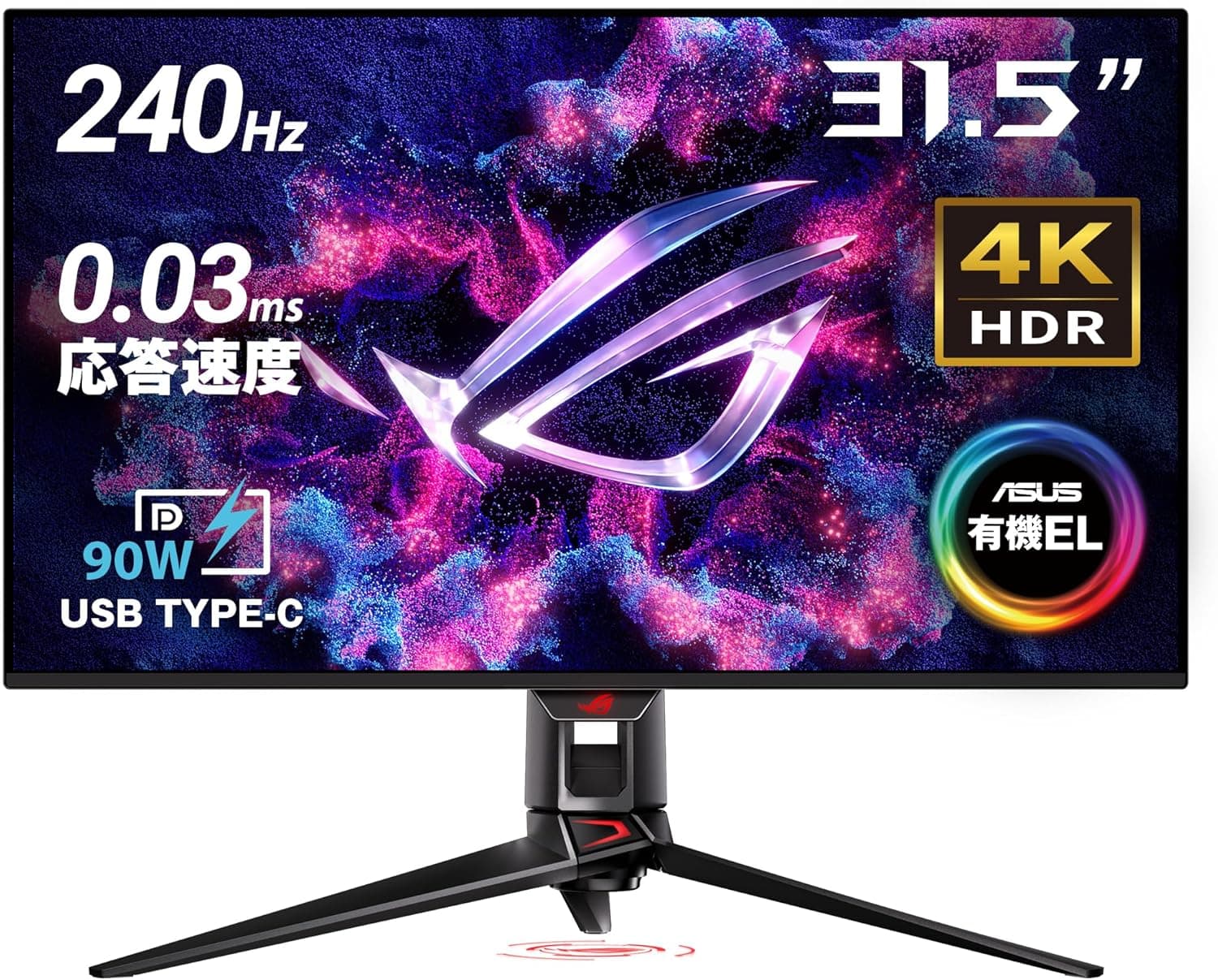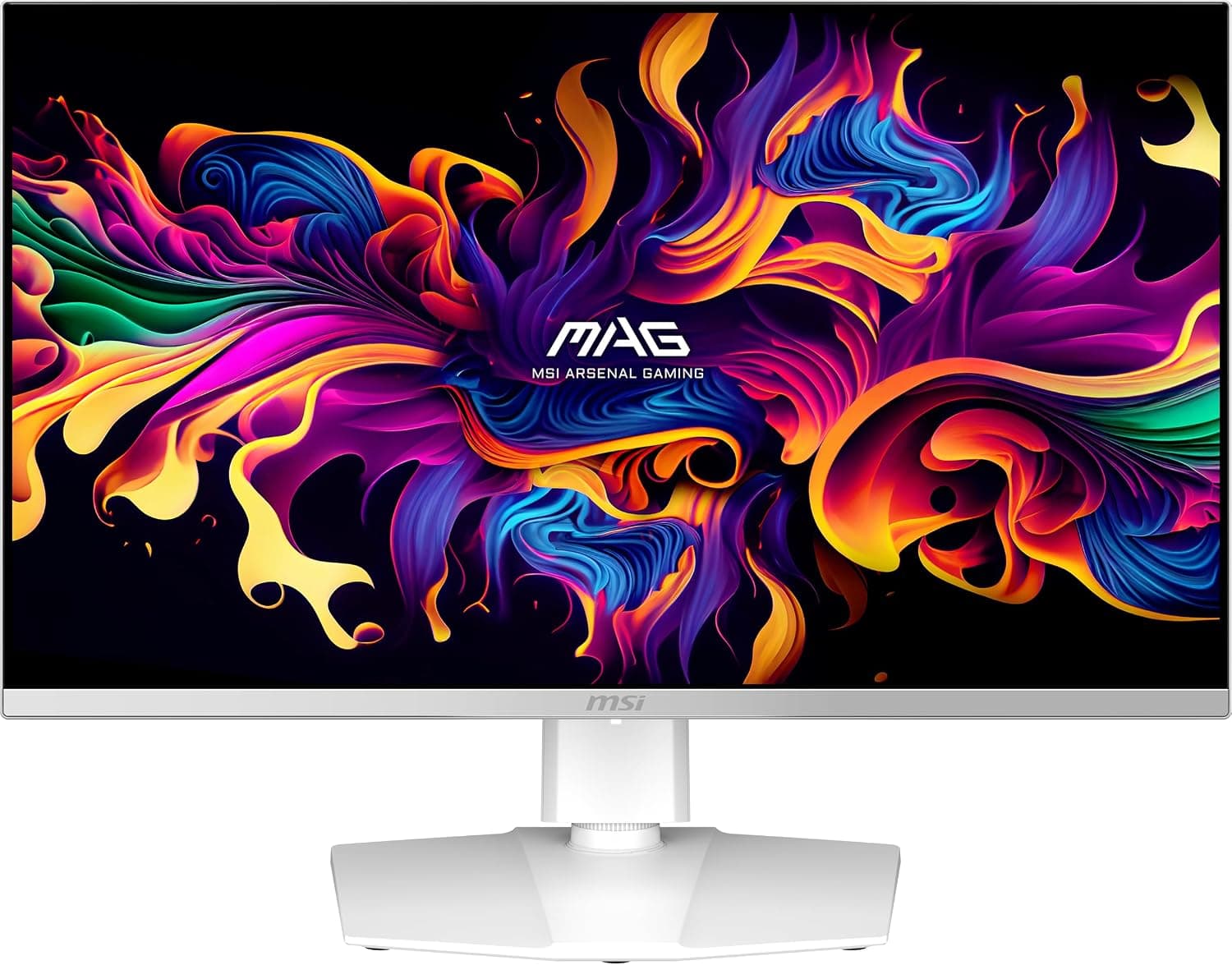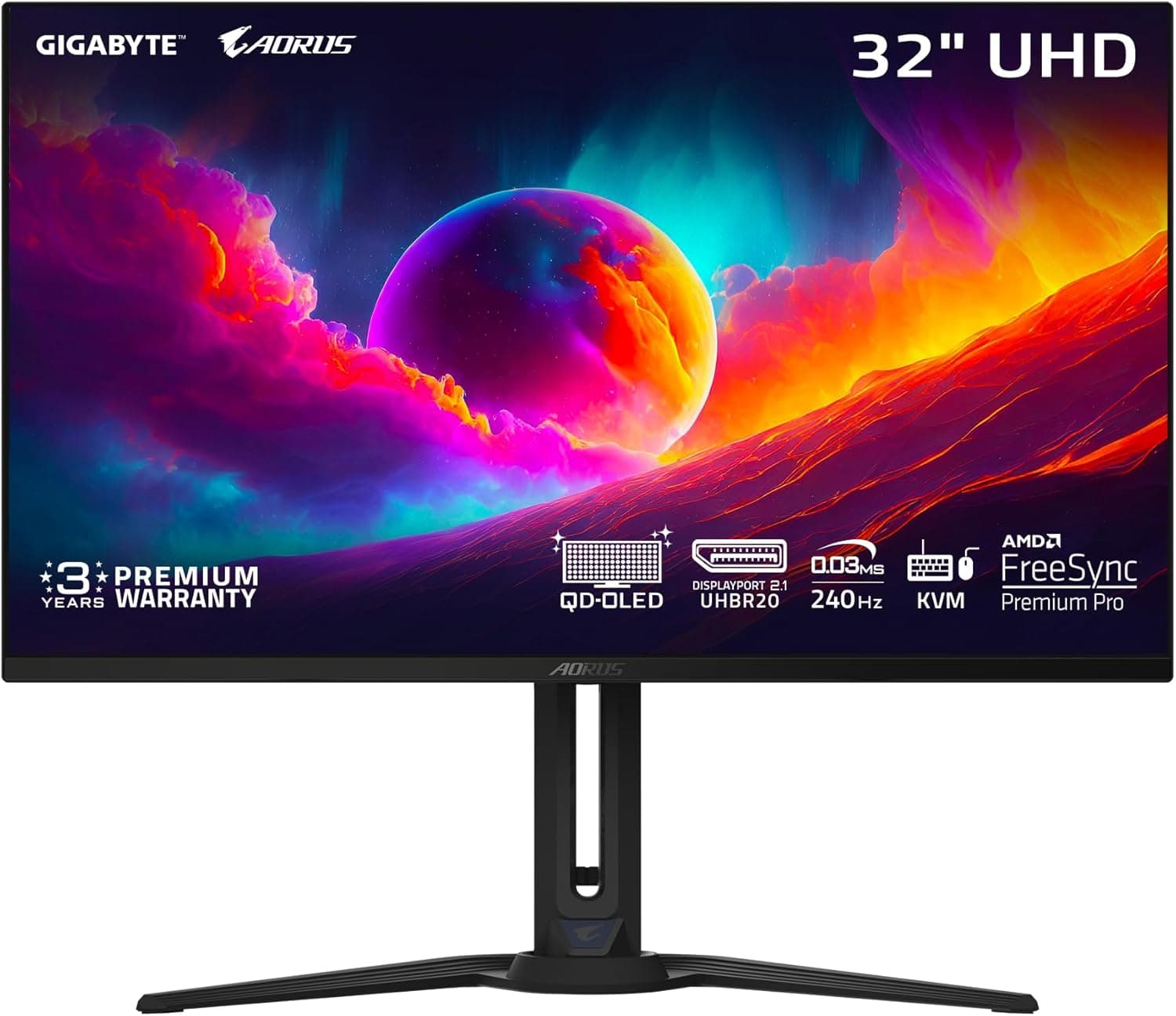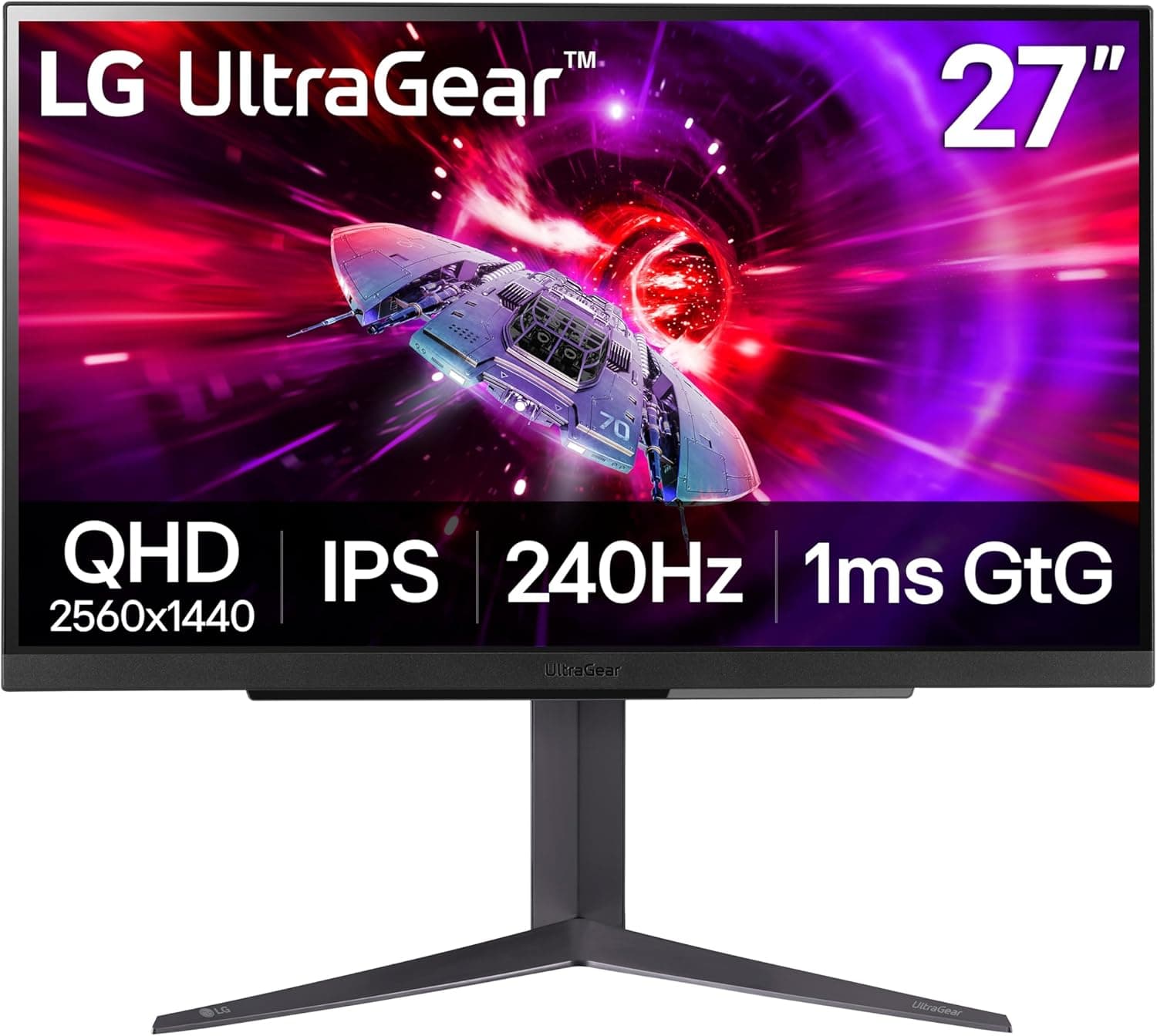
This article covers the LG 27" UltraGear QHD (2560x1440) Gaming Monitor (model 27GR83Q), from how to read its spec sheet to who should actively avoid it.
Overview
The LG 27GR83Q UltraGear is a 27-inch QHD (2560x1440) gaming monitor built for speed and clarity. It delivers a 240Hz refresh rate with a 1ms (GtG) response time, paired with an IPS panel that covers 95% of DCI-P3 and supports VESA DisplayHDR 400.
Compatible with both NVIDIA G-SYNC and AMD FreeSync Premium, it suppresses tearing and stuttering for smooth gameplay.
In one sentence: this is the model that tries to combine competitive-grade speed with color good enough for real work. Choosing IPS rather than TN at 240Hz, and shipping two HDMI 2.1 inputs, is what separates it from same-price 1080p 240Hz panels and from 144Hz QHD models.
The flip side is that anyone who prioritizes HDR brightness or OLED-grade black levels should look elsewhere — the "Before You Buy" section draws that line concretely.
The short answer, by use case
| Use case | Fit | Why |
|---|---|---|
| Competitive FPS / fighting games | Excellent | 240Hz + 1ms (GtG); frame intervals are clearly shorter than at 144Hz |
| AAA titles at high settings | Good | QHD is lighter on the GPU than 4K, so frame rates come easier |
| PS5 / Xbox Series X | Good | HDMI 2.1 accepts 1440p at 120Hz |
| Photo and video editing | Good | IPS with 95% DCI-P3; assume calibration for paid work |
| HDR movies as the main use | Weak | DisplayHDR 400 means "accepts HDR", not high brightness |
| Long text-heavy desk work | Good | 27-inch QHD is roughly 109ppi, readable without scaling |
Those ratings describe fit with the task, not the whole experience. What actually decides how it feels is the GPU you plug in, so read the compatibility section first.
Compatibility Guide
Video connectivity includes two HDMI 2.1 ports (48Gbps) and one DisplayPort 1.4, all capable of driving QHD at 240Hz.
Note that hitting 240Hz over DisplayPort 1.4 may require DSC compression depending on your setup.
A 4-pole headphone jack with DTS HP:X lets you run a headset from the monitor itself. G-SYNC Compatible and FreeSync Premium support means variable refresh rate works with modern GPUs on both sides.
On the PC side, the two practical gotchas are cables and GPU generation. Reaching 240Hz needs a GPU output of DisplayPort 1.4 or newer, or HDMI 2.1; on an HDMI 2.0-era card you will top out closer to 144Hz at QHD.
If you replace the bundled cable, use a VESA-certified DisplayPort cable or an Ultra High Speed certified HDMI cable. "240Hz isn't in the list" and "the screen blanks for a second every so often" are the two most common complaints on monitors like this, and both usually trace back to an uncertified cable.
For consoles, PS5 and Xbox Series X can output 1440p at 120Hz over HDMI 2.1.
Having two HDMI inputs is genuinely useful: leave a console connected alongside your PC and switch inputs instead of swapping cables. Output resolution still depends on the console and the individual game, so confirm that 1440p is selectable in the console's video output menu.
Physically, the monitor uses a 100x100mm VESA mount and weighs about 6.2kg with the stand.
Tilt, height, and pivot adjustments are included, so eye-level alignment is easy without an arm. If you do mount it on an arm, weight is rarely the constraint, but leave slack in your cabling if you plan to pivot into portrait orientation.
Product Info
Key specs: 27-inch, 2560x1440 (QHD), IPS, 240Hz, 1ms (GtG), VESA DisplayHDR 400, 95% DCI-P3, two HDMI 2.1 plus one DisplayPort 1.4, a 4-pole headphone output with DTS HP:X, tilt/height/pivot stand, 100x100mm VESA, about 6.2kg.
It was released in late 2023 and carries a three-year manufacturer warranty. Accessories include a power cable, a DisplayPort cable, and the stand base; whether USB cabling is included varies by batch and retailer, so check the in-box list before ordering.
Read the pricing carefully. On the marketplace listing, $335.99 was recorded as of 17 August 2026.
The domestic retail figure that was collected, however, is off by an order of magnitude for a 27-inch QHD 240Hz IPS panel and almost certainly belongs to a different product, so this article does not quote it. All prices are captured at a point in time and move with sales, so verify the current price on the product page before buying.
For ratings, the referenced listing shows 758 reviews at 4.4 out of 5 (about 88% positive).
As noted below, that same listing carries inconsistent registration data, so treat the review figures as possibly belonging to a different item.
How It Compares
A 27-inch 1080p 240Hz panel targets something different. It is lighter on the GPU, which is rational if frame rate is all you care about, but 1080p stretched over 27 inches has coarse pixel pitch and suffers in desk work and text.
At QHD the 27GR83Q lands around 109ppi, and the longer you spend outside games, the more that matters. The trade is a genuinely higher GPU requirement to reach the same 240fps.
Above it sit QD-OLED panels running QHD at 360Hz and high-refresh 4K models. OLED clearly wins on black level and response, but brings burn-in management and a higher price.
4K wins on text and image detail, but the GPU budget for equivalent frame rates climbs sharply. Judged by "can my current GPU actually produce those frames," QHD 240Hz IPS is the least compromised choice.
Many buyers also weigh this against 31.5-inch models.
A 27-inch QHD panel is easy to run without scaling and keeps eye movement short. If you spend most of your time tiling work windows, a 31.5-inch or larger screen will likely satisfy more.
Setup Tips and Day-to-Day Feel
Three things are worth doing on day one. First, enable the maximum refresh rate in the OSD and then explicitly select 240Hz in your OS display settings — a surprising number of owners run at 60Hz or 144Hz without noticing.
Second, turn on G-SYNC Compatible or FreeSync in the GPU control panel; monitor-side support does nothing if the GPU side is off.
Third, do not set overdrive to its most aggressive level. The 1ms (GtG) figure is measured at the strongest setting, and on most IPS panels that introduces overshoot — a pale trailing edge behind moving objects.
A middle setting usually looks cleaner in practice, so compare them during a fast-moving scene. For HDR, enabling it per-title rather than leaving it on all the time is the easier way to live with this panel.
Before You Buy
First, the source listing's registration data is inconsistent. The product-information block on that page lists a manufacturer that is not LG, which contradicts the subject of this article, the LG UltraGear 27GR83Q.
Publishing an incorrect manufacturer as fact is worse than omitting it, so that line has been removed from this article. You will hit the same discrepancy on the page, so confirm the product from the images, the title, and the model number 27GR83Q rather than the listed metadata. The collected domestic price and review counts may likewise belong to a different item.
Second, accept the HDR limits. VESA DisplayHDR 400 certifies that a display accepts and shows an HDR signal; it is not the same experience as a high-brightness, locally dimmed panel.
If HDR movies or deep contrast are your priority, look at DisplayHDR 600 or above, or OLED. For the same reason, IPS is a poor fit if elevated black levels in a dark room bother you.
Third, check the GPU balance. A 240Hz panel only pays off when you can actually produce 240fps, and at QHD that mostly means lighter competitive titles.
If your main use is heavy AAA games at max settings, real frame rates will fall well short of 240 and the gap versus a 144Hz panel narrows considerably. Measure what your current GPU delivers in the games you play before deciding.
Other things owners notice after purchase: there are no built-in speakers, so audio runs through the headphone output; cable quality directly affects stability at 240Hz; and in portrait orientation the IPS viewing-angle characteristics make slight color shift easier to spot. None of these are dealbreakers, but if you are upgrading from a decent 144Hz panel expecting a night-and-day change, the delta may not justify the spend.
Best Use Cases
The clearest fit is a competitive FPS player who also wants QHD sharpness on a 27-inch screen. The 240Hz refresh rate and 1ms response make enemy movement easier to track and trim the gap between seeing and reacting.
The second fit is anyone running one display for both gaming and creative work, where IPS color accuracy and 95% DCI-P3 hold up for photo editing and video.
It also suits PS5 and Xbox Series X owners who want one screen shared with a PC, since two HDMI 2.1 inputs let a console stay permanently connected.
Conversely, it is not the pick for people who weight HDR brightness heavily, want 4K detail, or are watching budget — in that last case the 144Hz model in the same line is the better value.
FAQ
Q. What GPU do I need for QHD at 240Hz? A.
Any GPU with DisplayPort 1.4 or newer, or HDMI 2.1, can output it.
Whether you reach ~240fps depends on the title; outside lighter competitive games, expect to lower settings.
Q. Does 1440p/120Hz work on PS5? A.
The HDMI 2.1 input supports it, provided the console outputs 1440p.
Check the console's video output settings for a 1440p option.
Q. 240Hz doesn't appear in my display settings. A.
Suspect the cable first: use a VESA-certified DisplayPort or Ultra High Speed certified HDMI cable. Then confirm the high-refresh option is enabled in the OSD and selected in the OS.
Q. Is it really 1ms? A.
1ms is a GtG figure at the most aggressive overdrive setting. In practice a middle setting usually looks better with less overshoot, and effective response is then slower than the rated number.
Q. Can I use a monitor arm? A.
Yes — it supports a 100x100mm VESA mount and weighs about 6.2kg with the stand, well within typical arm ratings.
Q. The listing doesn't say LG as the manufacturer. Why? A.
Listing metadata is sometimes wrong. Judge by the product images, title, and the 27GR83Q model number instead.