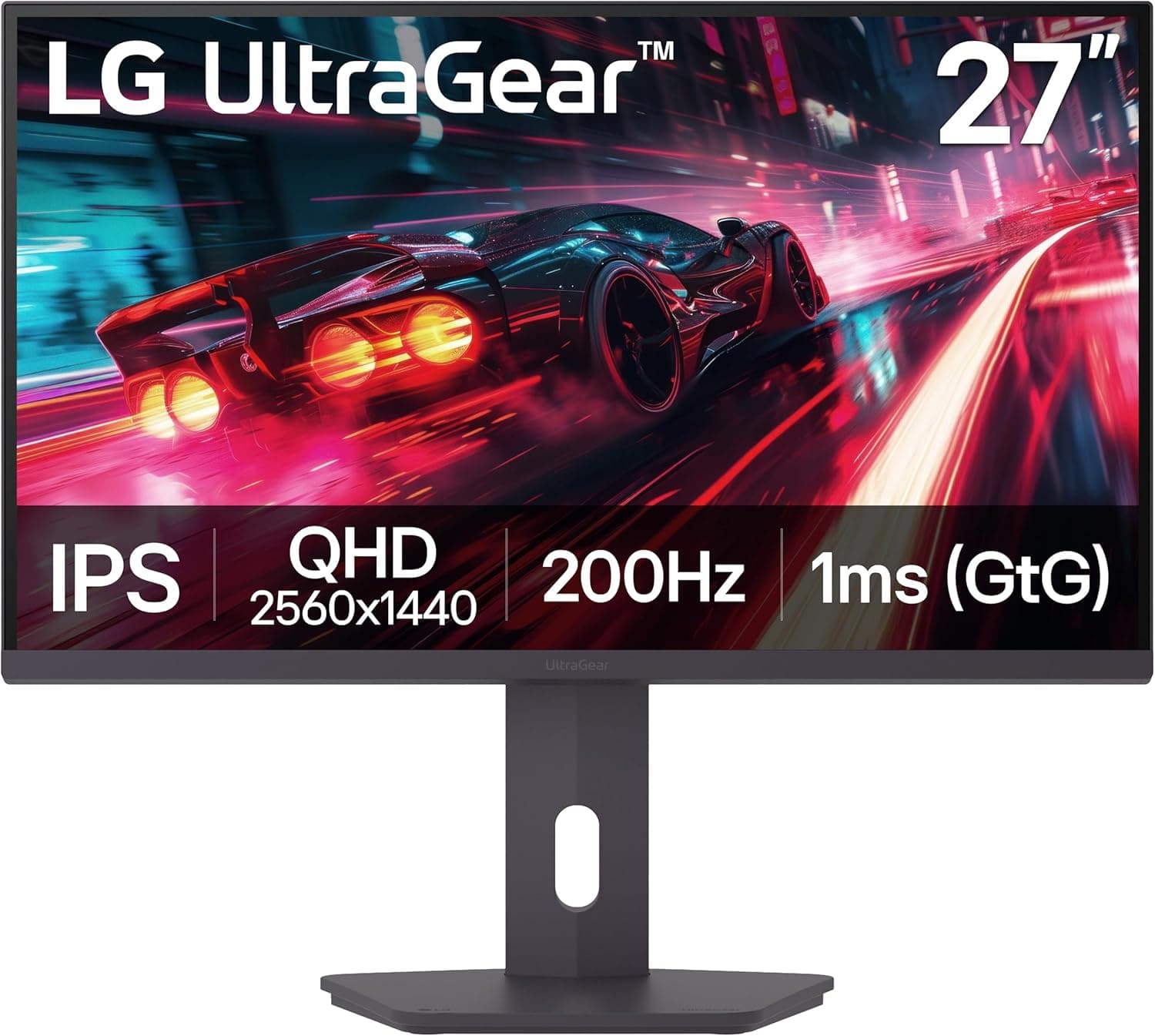
This article walks through the LG 27G610A-B 27-inch UltraGear QHD (2560x1440) IPS gaming monitor — 200Hz, 1ms, AMD FreeSync Premium, VESA DisplayHDR 400, HDMI and DisplayPort, tilt-only stand — from how to read the spec sheet to the things that actually trip people up.
Overview
The LG 27G610A-B pairs a 27-inch QHD (2560x1440) IPS panel with a 200Hz refresh rate and a 1ms response time (manufacturer figure). It lands squarely with buyers stepping up from 1080p/144Hz who are not ready to jump to 4K or OLED.
It is not competing with 360Hz esports panels or color-critical creator displays; it is a balance play between resolution and frame rate, and that framing makes the buying decision much easier.
On Amazon.co.jp it carries a 4.5 out of 5 rating across 117 reviews (90% positive) as captured on June 9, 2026.
For this class, a 100-plus review count at 4.5 usually signals a product without wild swings in quality.
Panel lottery still exists at this price point, so run the arrival checks described further down.
Reading the Spec Sheet
| Item | Value | What it means in practice |
|---|---|---|
| Panel | 27-inch IPS | Wide viewing angles, color holds up off-axis |
| Resolution | 2560x1440 (QHD) | About 109ppi at 27 inches; text stays crisp for work |
| Refresh rate | 200Hz | Modest jump over 144Hz, but genuinely smoother |
| Response | 1ms (rated) | An overdrive-on figure; tuning changes perceived blur |
| Adaptive sync | AMD FreeSync Premium | Tear control plus low framerate compensation |
| HDR | VESA DisplayHDR 400 | "Accepts HDR" tier, not true HDR rendering |
| Inputs | HDMI / DisplayPort | Use DisplayPort to reach 200Hz |
| Stand | Tilt only | No height, swivel, or pivot adjustment |
If you read "1ms" as zero blur and "HDR 400" as cinematic HDR, you will be disappointed. The 1ms figure is a GtG number with overdrive pushed hard, and pushing it too far introduces inverse ghosting instead.
DisplayHDR 400 typically means roughly 400 cd/m² peak with no local dimming, so treat it as an extension of SDR. Whether you can live with those two caveats decides most of your satisfaction with this monitor.
Compatibility Guide
Start with the cable. To run QHD at 200Hz, use DisplayPort with a DisplayPort 1.4-rated cable and a DP output on your graphics card.
HDMI will display an image, but depending on the HDMI version and cable quality you may be capped at 144Hz or 120Hz. If 200Hz never appears in your display settings, suspect the cable first, then set the refresh rate explicitly in Windows display settings and in the NVIDIA or AMD control panel.
GPU expectations matter too. Holding 200fps at QHD is realistic in lightweight competitive titles (VALORANT, CS2, Apex Legends at tuned settings) on a mid-range card, but heavy AAA games at high settings will typically land somewhere between 60 and 100fps.
Decide whether you are buying for the refresh rate or the resolution, because that changes how you tune settings. Adaptive sync softens the gap when you fall short of the cap.
FreeSync Premium works natively with AMD Radeon cards. Many FreeSync monitors also run as G-SYNC Compatible on GeForce, and you can often enable it manually in the NVIDIA Control Panel — check the product page for whether this specific model is on NVIDIA's certified list.
For consoles, PS5 and Xbox Series X|S can output 1440p over HDMI in supported configurations; confirm resolution and refresh settings on the console itself.
Physically, the tilt-only stand is the biggest limitation. There is no height adjustment, swivel, or pivot, so your desk and chair combination may leave the panel at the wrong eye level.
The display supports VESA mounting, which solves this with a monitor arm or wall bracket. Check your arm's weight rating and confirm the exact VESA hole pattern and panel dimensions on the product page before ordering.
Product Info
The Amazon.co.jp listing showed ¥48,927 as captured on June 12, 2026.
Monitor pricing swings hard with sales, so this figure is a snapshot rather than a current price — always check the listing before buying. At that level it sits toward the upper end of the 27-inch QHD high-refresh bracket, which makes cross-shopping 165–180Hz alternatives worthwhile.
Review data shows 4.5 out of 5 across 117 reviews, 90% positive, captured June 9, 2026.
Gaming monitor reviews tend to split over color, stand quality, and dead pixels, so read five or so critical reviews rather than trusting the average alone. Complaints about stand adjustability are structurally likely here given the spec.
How It Compares
Against 27-inch 1080p 240Hz panels (such as the MSI MAG 274CF X24), this model trades raw frame rate for pixel density. Pick the 1080p high-refresh option if you are shaving frames in competitive play; pick this one if a single display has to handle both gaming and desktop work.
Many people find 1080p noticeably coarse at 27 inches, which is where QHD earns its keep.
Moving up, you have 4K high-refresh panels like LG's UltraGear 27GP950-B, or OLED options such as the LG 32GX850A-B and PHILIPS Evnia 27M2N8500. Those beat this monitor clearly on black levels and response, but they cost more, demand more GPU, and OLED brings burn-in management as an ongoing operational concern.
The 27G610A-B is the pragmatic pick when you want a real upgrade without replacing your graphics card too.
Getting the Most Out of It
The first thing to do after setup is dial the OSD overdrive setting to something around the middle option. Maxing it on an IPS gaming panel usually produces inverse ghosting, so judge it while watching bright objects move across dark backgrounds.
Next, lock the refresh rate to 200Hz and enable FreeSync both in the OSD and on the GPU side. A surprising number of "it doesn't feel that smooth" complaints trace back to skipping these three steps.
Leave HDR off by default and switch it on only for supported titles. At the DisplayHDR 400 tier, keeping Windows HDR always on can make SDR content look washed out.
SDR for the desktop, HDR only for games that use it, gives the better-looking result overall.
Best Use Cases
This is the right monitor for someone raising both resolution and refresh rate at once from a 1080p setup. At roughly 109ppi, 27-inch QHD keeps text readable, which suits a single display doing gaming, remote work, and light editing prep.
If you have a mid-range or better GPU and are willing to run competitive titles at lower settings and AAA titles for image quality, the real-world frame rates will not frustrate you.
Radeon owners get the cleanest experience, since FreeSync Premium includes low framerate compensation and pays off most when the GPU is under pressure. Anyone who already owns a monitor arm — or plans to buy one — also sidesteps this model's single biggest weakness.
It is the wrong choice for color-critical print and photo work, for HDR movie viewing as a primary use, or for creative workflows that assume 4K. Those sit outside what this panel was designed to do.
Before You Buy
First, the listing data for this product is inconsistent. The source data behind this article contained specifications unrelated to a monitor (battery capacity and USB output ports — power bank fields).
Mismatched metadata does end up on listings. When you open the product page, do not trust the spec text alone: confirm the product from the images, the title, and the manufacturer model number 27G610A-B. The same applies to price, which is only a point-in-time capture.
The stand tilts only. If you need height, pivot, or swivel adjustment, budget for a monitor arm from the start.
"Got the panel cheap, then spent the savings on an arm" is the most common miscalculation in this bracket. Measure your desk depth and check that the clamp fits before ordering.
Do not expect much from DisplayHDR 400. Without local dimming, HDR400 mostly raises peak brightness while black levels stay elevated.
Judge this monitor on its SDR image quality; treat HDR support as "accepts the signal" rather than a feature you buy it for.
Know the IPS trade-offs. IPS glow in dark scenes, lower contrast than VA, and mild backlight unevenness are characteristics of the panel type, not defects.
Genuine dead pixels or severe uniformity issues may qualify as initial defects, so display full-black, full-white, and solid primary color screens within the first ten minutes and decide inside the return window.
Finally, do not buy on the 200Hz number alone. If your GPU cannot push anywhere near 200fps at QHD, the card is the bottleneck, not the panel.
Check your actual frame rates first — if you are hovering around 100fps, your money does more good in a GPU upgrade.
FAQ
Q. Which port do I need for 200Hz? A.
DisplayPort. Use a DisplayPort 1.4-rated cable and explicitly select 200Hz in both Windows display settings and your GPU control panel.
HDMI may cap you lower.
Q. Does adaptive sync work on GeForce? A.
FreeSync Premium monitors frequently run as G-SYNC Compatible and can often be enabled manually in the NVIDIA Control Panel. Check the product page for official certification status.
Q. Can I use it with a PS5 or Xbox? A.
Yes, over HDMI. 1440p output is supported in appropriate configurations; verify resolution and refresh settings on the console.
Console caps differ from PC.
Q. Is the height adjustable?
A. No — tilt only. Use the VESA mount with a monitor arm if you need height, swivel, or pivot.
Q. Is it good for text work and video? A.
Yes. Roughly 109ppi at 27 inches makes text comfortable, and IPS viewing angles help when sharing the screen.
For strict color accuracy, use a calibration-capable professional display instead.
Product Disclosure (Amazon)
- ASIN: B0FLM15Q5L
- Note: This article covers a manufacturer-made product based on Amazon listing details.