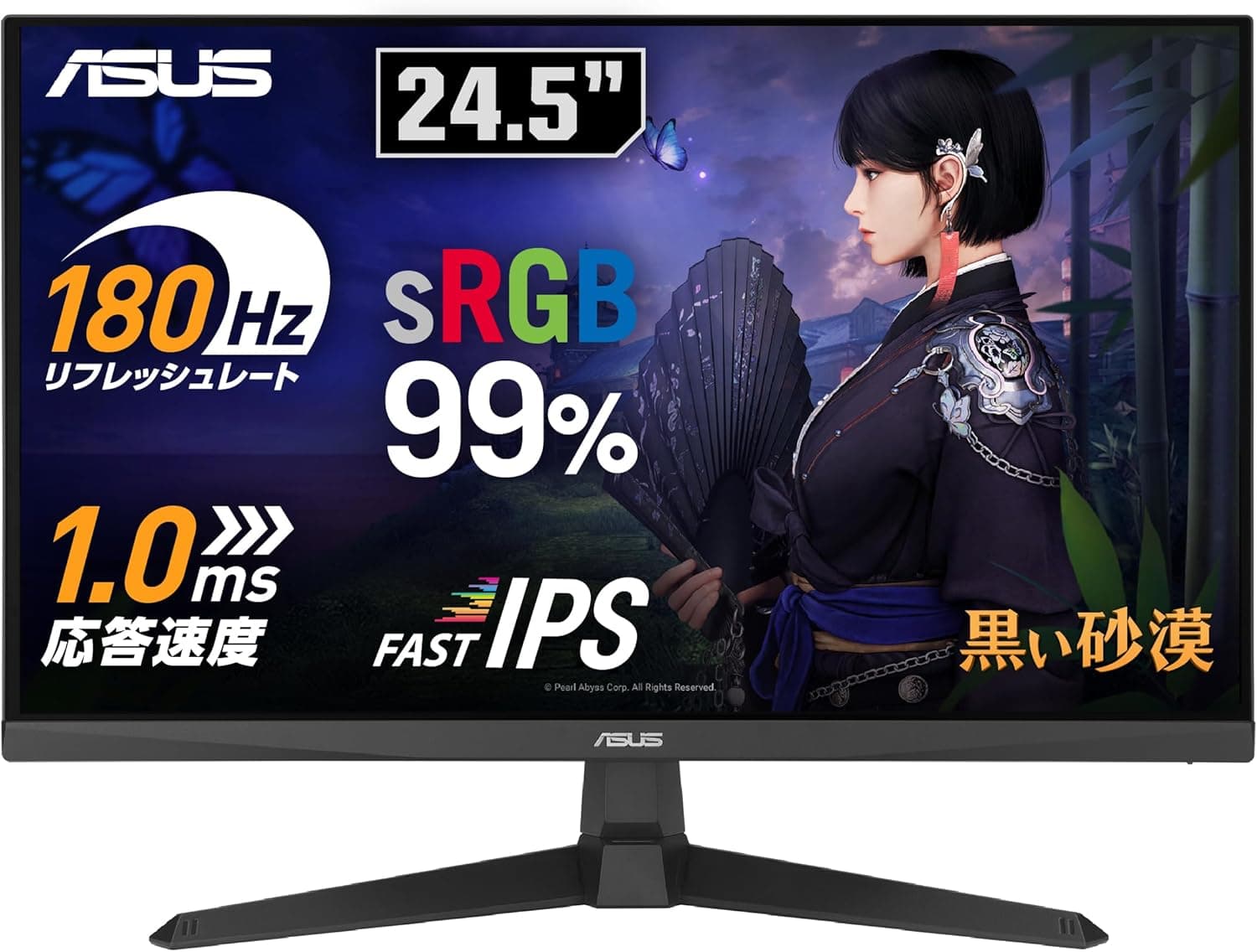
The ASUS TUF Gaming VG259Q3A goes straight at the classic esports formula: 24.5 inches, Full HD, 180Hz.
This article walks through where that formula pays off and where you have to accept compromises.
Overview
The short version: this is a monitor for people who want a 180Hz 1080p setup by the shortest route possible. The 24.5-inch size has been the competitive standard for years because it keeps eye movement small, and Full HD is part of that same logic.
Judged as a general-purpose display, it scores lower.
The panel is Fast IPS with a 1ms GTG response time, 178°/178° viewing angles, and 99% sRGB coverage. Colors hold up off-axis, which makes it easy to live with outside games.
Brightness is 250 cd/m² and contrast is 1000:1, both squarely in normal IPS territory. Think of it as a clean, predictable image rather than a bright, HDR-punchy one.
Amazon.co.jp review data captured in June 2026 shows 71 reviews at 4.3 out of 5 stars (about 86% positive).
The sample is still small, but the trend is stable.
Compatibility Guide
Video inputs are one DisplayPort 1.2 and two HDMI 2.0 ports, and that split defines how you should wire it.
180Hz is realistically a DisplayPort 1.2 job; HDMI 2.0 typically tops out lower even at 1080p because of bandwidth.
Use the bundled DisplayPort cable for the PC and reserve HDMI for consoles. Most "I can't select 180Hz" complaints trace back to an HDMI connection, or to never changing the refresh rate in Windows display settings.
| Use case | Recommended port | Notes |
|---|---|---|
| Gaming PC | DisplayPort 1.2 | Required path for 180Hz |
| PS5 / Xbox Series X|S | HDMI 2.0 | 120Hz on supported titles |
| Laptop | HDMI 2.0 / DP Alt Mode | No native USB-C input; adapter needed |
| Headset | 3.5mm jack | Plan on external audio |
Adaptive-Sync (VRR) is supported, so tearing can be suppressed with a compatible GPU. Radeon cards use it as FreeSync; GeForce cards can enable it as G-SYNC Compatible.
Either way it must be turned on explicitly in the driver — otherwise it simply isn't running.
As for the GPU itself, 180Hz only means something if your card can push those frames in the titles you actually play. Expect it in competitive shooters, not in heavy single-player releases.
The monitor is the receiver; the frame rate is the GPU's job.
The 100×100mm VESA pattern means arms and wall brackets work. If a dual-monitor setup is in your future, plan the arm at purchase time so you don't redo the cabling later.
Stand adjustability (height, pivot) varies within the series — confirm it on the product page.
Product Info
Core specs: 24.5-inch, 1920×1080, 180Hz, 1ms GTG, Fast IPS, 250 cd/m² brightness, 1000:1 contrast, 178°/178° viewing angles, 99% sRGB, DisplayPort 1.2 ×1, HDMI 2.0 ×2, 3.5mm audio out, VESA 100×100mm.
Pricing was ¥13,980 on Amazon.co.jp as captured on June 12, 2026 — inexpensive for a 180Hz Fast IPS panel.
Prices move often and sale periods move them further, so treat that figure as a snapshot and check the product page before buying. The eBay entry is a search link only, with no confirmed amount.
Japanese domestic units carry a 3-year manufacturer warranty, with a DisplayPort cable, HDMI cable, power cord, quick start guide, and warranty card in the box. Including the DisplayPort cable is a small but real convenience: you can reach 180Hz without a separate purchase.
Where It Sits Against Rivals
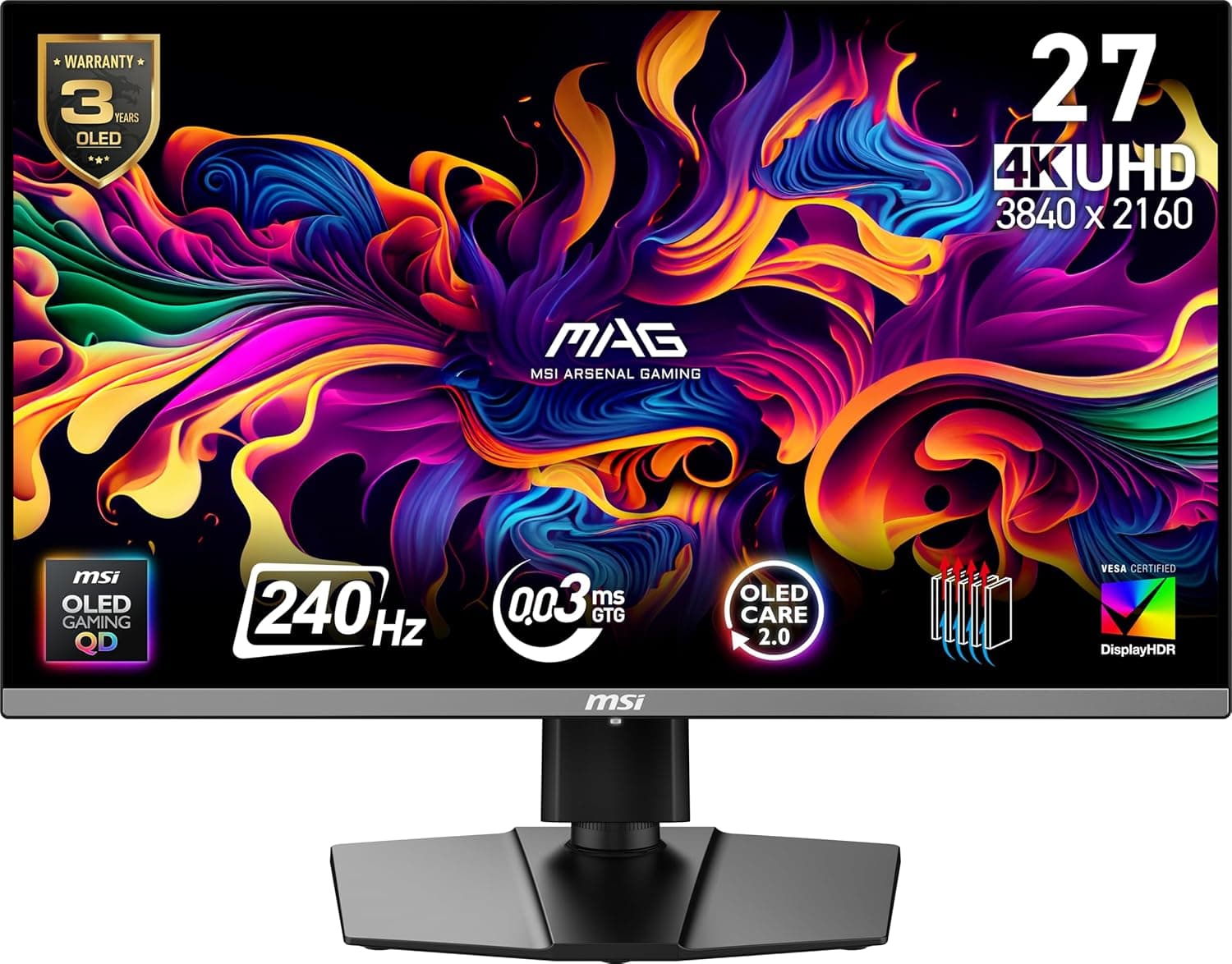
The same 24.5-inch bracket includes options like the Dell AW2525HM, and 27-inch 240Hz panels such as the MSI MAG 274CF X24 push higher on both size and refresh rate.
This monitor sits one step below that, in the "secure 180Hz without stretching the budget" zone.
The decision rule is simple: 240Hz and above is worth paying for only if your GPU and your game library actually produce those frames. With a mid-range card, a 240Hz panel behaves like a 180Hz one.
And if what you really want is a better-looking image rather than more frames, put the money toward OLED or a higher resolution instead.
What Actually Matters in Use
The relationship between ELMB and Adaptive-Sync is the detail most buyers miss. Backlight-strobing features of this type generally cost brightness and come with restrictions on running alongside variable refresh rate.
If the screen dims or VRR appears to stop working when you enable ELMB, that is expected behavior, not a fault — try both and keep whichever suits your play style.
Overdrive works the same way. A 1ms GTG figure is normally measured at the most aggressive setting, and in practice pushing it too far produces overshoot artifacts.
Start from a middle setting and stop where smearing and inverse ghosting balance out.
Best Use Cases
- Competitive FPS and fighting game players. The small-screen, high-refresh combination is exactly what this size exists for.
- First-time high-refresh buyers. Cables are included and the June 2026 price point is realistic for a first step.
- Mid-range GPU owners. If 240Hz would be wasted, 180Hz is the sensible landing spot.
- Anyone who wants dependable color. 99% sRGB on IPS handles stream checks and light photo work.
- Multi-monitor builders. VESA support makes it easy to arm-mount beside a main display.
Before You Buy
Start with who should not buy it. If you need desktop space, look elsewhere.
A 24.5-inch 1080p panel is cramped for side-by-side browser and editor work, and spreadsheets or video timelines are far more comfortable on a 27-inch QHD screen.
This is a gaming-weighted product, not a do-everything one.
It is also the wrong pick for HDR or cinematic image quality. 250 cd/m² and 1000:1 are ordinary numbers, and IPS black levels lift in dark scenes.
Horror games and movie-heavy use will expose that. If image depth is the priority, OLED or a high-brightness VA panel is the safer buy.
180Hz is not something the monitor hands you on its own. Your GPU has to produce the frames, you have to connect over DisplayPort, and you have to enable both the refresh rate in Windows and Adaptive-Sync in the GPU control panel.
Skipping those steps is a common reason people report "no difference."
Console expectations need adjusting too. PS5 and Xbox Series X|S give you up to 120Hz on supported titles, not 180Hz.
With HDMI 2.0 and a 1080p panel, 4K/120Hz console modes are out of scope by definition.
Finally, verify the listing itself. Amazon product pages sometimes carry manufacturer, model number, or ASIN details that don't match the actual item, and a single page can bundle different revisions or sizes.
Before checking out, confirm from the page title, product images, and spec table that you are looking at the TUF Gaming VG259Q3A. The same caution applies to price — the figure here is from June 2026.
FAQ
Q. Which port do I need for 180Hz? A.
DisplayPort 1.2.
Use the bundled cable, then set the refresh rate to 180Hz in Windows advanced display settings. HDMI 2.0 generally caps lower.
Q. Does VRR work with NVIDIA cards? A.
It's an Adaptive-Sync display, so GeForce drivers can typically enable it as G-SYNC Compatible. Behavior is setup-dependent, so verify in an actual game after enabling.
Q. Will my PS5 run at 180Hz?
A. No. Consoles top out at 120Hz on supported titles. 180Hz is a PC-plus-DisplayPort figure.
Q. Are speakers built in? A.
The published specs list a 3.5mm audio output.
Plan on a headset or external speakers, and check the product page if built-in audio matters to you.
Q. Can I use it for work? A.
You can, but 24.5-inch Full HD is not much workspace.
For document-and-browser workflows, 27-inch QHD or larger is more comfortable.
Q. Can I mount it on an arm? A.
Yes — it supports VESA 100×100mm. Check the product weight on the listing against your arm's load rating.
Product Disclosure (Amazon)
- ASIN: B07MDV2H9W
- Note: This article covers a manufacturer-made product based on Amazon listing details.