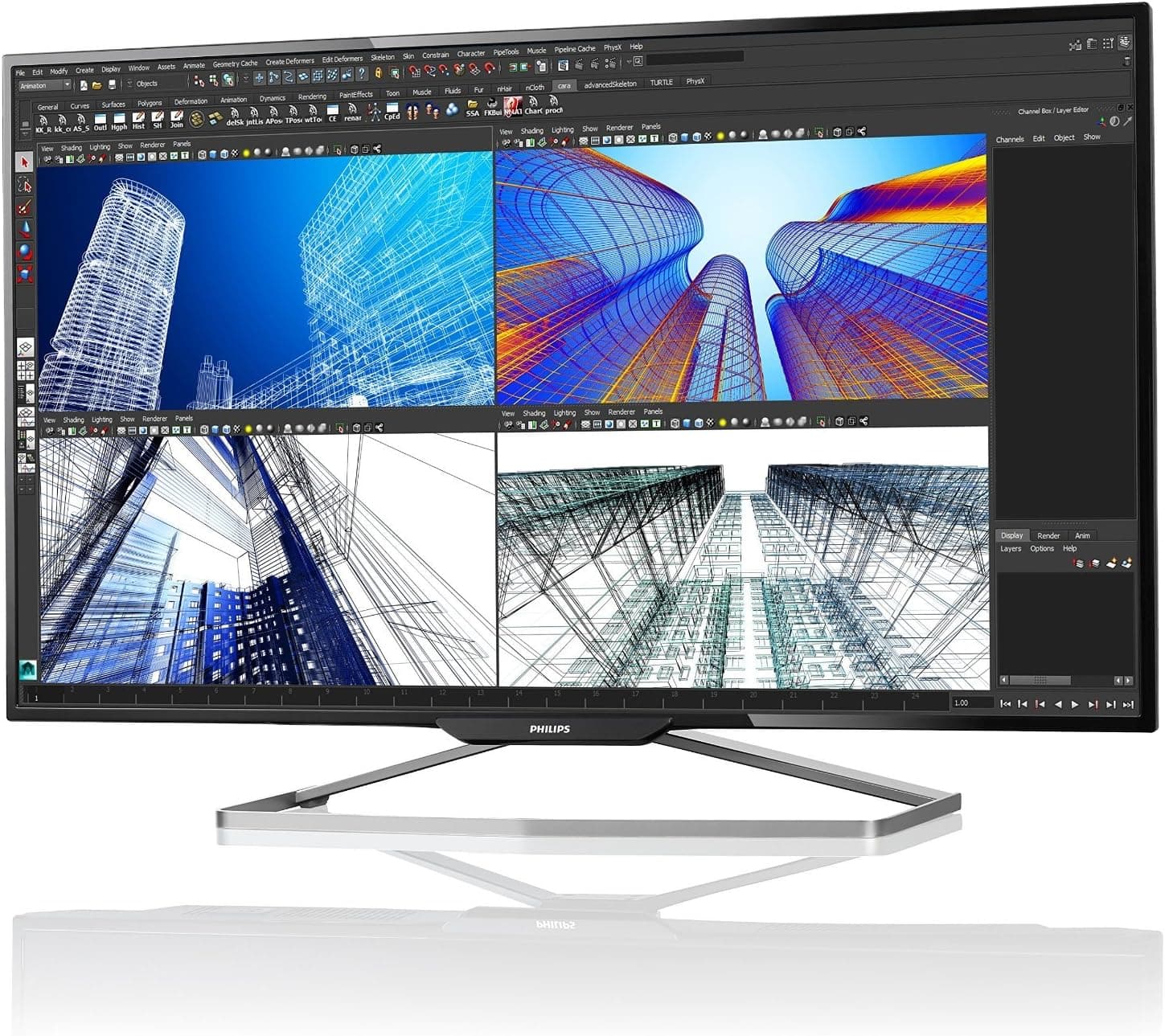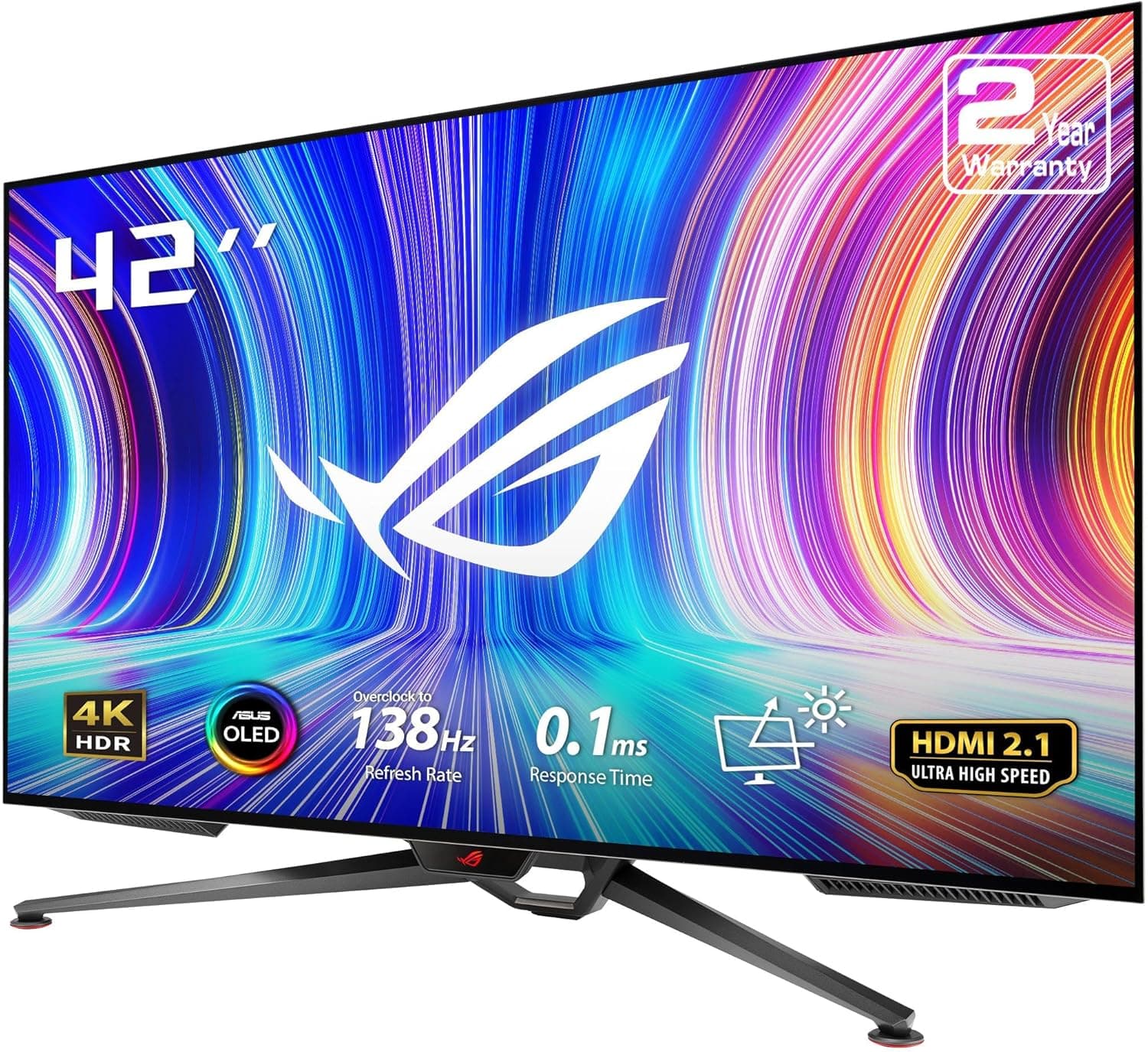
The ASUS ROG Swift PG42UQ puts a 41-inch-class 4K OLED panel to work as a PC gaming display. Buying decisions here differ fundamentally from a typical 27-32 inch monitor: the first question is not "is it fast enough" but "do I have the space and the use case for a screen this large." This article covers placement, connection requirements, the operating habits OLED demands, and the listing-data errors attached to this product page.
Overview
The PG42UQ sits between a monitor and a television: a UHD (3840x2160) OLED panel at 41 inches. Its appeal is the perfect black levels and the fast pixel response that LCD struggles to match, which makes it a strong fit for anyone consolidating a PC and a console onto one screen.
The flip side is that this size is excessive for close-range office work and long text editing sessions; buyers who ignore that end up describing it as "too big to use."
The listing aggregate showed 4.0 out of 5 stars from 156 reviews as of June 8, 2026.
A 4.0 is a familiar distribution for large OLEDs, where praise for image quality coexists with complaints about size, burn-in anxiety, and stand ergonomics.
Read what the low scores object to rather than the average alone.
What a 41-inch 4K OLED Actually Is
At 27 inches, 4K means a pixel density high enough that OS scaling becomes a chore. At 41 inches, the density lands roughly near a typical 24-inch Full HD panel, so text stays readable at 100% scaling.
In other words, 4K at this size is not "4K for more information" but "4K for a bigger picture." It excels at immersion, video content, and living-room-style console play, and it is mediocre at tiling windows for productivity.
Viewing distance matters just as much. Placed on a 60 cm deep desk at the distance you would use a 27-inch screen, the edges fall outside your field of view and you end up swinging your eyes across the panel.
Plan on at least 80 cm, ideally around a meter. That is a prerequisite, not a flaw.
Compatibility Guide
Driving 4K at a high refresh rate requires bandwidth on the source side. Feeding 4K at around 120 Hz needs HDMI 2.1 (or DisplayPort with comparable bandwidth).
Route it through an HDMI 2.0-era GPU, an older AV receiver, or a cheap switcher and you will be capped at 60 Hz or forced to give up color depth and chroma sampling.
Use a cable explicitly rated for HDMI 2.1.
This is by far the most common failure point.
On the PC side, remember that 4K is a punishing resolution. Depending on your GPU tier, holding high frame rates at native 4K may be unrealistic without upscaling.
When people say "I bought the monitor and the frame rate is still bad," the GPU is almost always the cause.
For consoles, the PlayStation 5 and Xbox Series X both support 4K/120 Hz output, so a display class with HDMI 2.1 inputs pairs well with them.
Whether a given mode engages still depends on the console's system settings and per-title support, so check whether the game itself offers a 120 Hz mode.
Physical compatibility is easy to overlook. A 41-inch-class panel is heavy and wide enough to exceed many monitor arms' load ratings and to overhang desks narrower than about 120 cm.
If you plan to use a VESA mount, measure the mount standard, the weight limit, and the rear clearance behind the pole before you buy. Bundled stands on displays this size often use TV-style feet that eat into shallow desktops.
Product Info
This article is about the ASUS ROG Swift PG42UQ, a 41-inch-class UHD (3840x2160) OLED gaming monitor.
One important warning: the spec table currently attached to this listing clearly belongs to a different product - a USB fast charger. Entries such as "65W max output," "USB-C x2," "approx.
42 x 42 x 30 mm," and "approx. 100 g" cannot describe a 41-inch display, so this article does not treat them as PG42UQ specifications.
Confirm the exact refresh rate, brightness, HDR certification, and port layout on the ASUS product page or a reputable retailer's spec sheet.
The same applies to price. The figure shown (captured June 12, 2026) listed an identical yen amount for both the Japanese and international entries, and its magnitude was out of line with what large OLED panels normally sell for.
Because a collection error is the likely explanation, no specific price appears in this article. Prices move a lot, and OLED models swing especially hard during sales, so check the current price on the product page at the time you buy.
Burn-in Care and Daily Habits
Buying an OLED means folding burn-in awareness into how you use the screen. Modern panels include mitigation features, but your own settings reduce the risk far more than the features alone.
- Set the taskbar to auto-hide. Permanently visible fixed UI is the single biggest risk element.
- Avoid parking desktop icons and always-on widgets in the same spot forever.
- Do not run brightness higher than you need, especially for SDR content over long sessions.
- If you play hundreds of hours of a title with a static HUD (health bar, minimap, ammo counter), take breaks or move that content elsewhere.
- Never cut power at the strip right after shutdown; that interrupts the pixel-refresh cycle.
Also note that OLED subpixel layouts differ from LCD, so thin text can show color fringing at the edges. It is a non-issue for games and video, but some people find it distracting when working with small black text on white all day.
Decide which describes your usage before you buy.
How It Compares
Even among OLEDs, 31.5-inch and 27-inch models target something different.
If you sit squarely at a desk, a 31.5-inch OLED gaming monitor fits your field of view more easily and gives you far more monitor-arm options.
If competitive FPS is the priority, a 27-inch QD-OLED that trades resolution for refresh rate at QHD makes more sense.
But if you want 4K detail and large-format immersion in one panel shared between a PC and a console, no other size substitutes. This product is the right answer only for buyers whose reason is "41 inches" rather than "4K."
Best Use Cases
Recommended if any of these describe you:
- You have a deep desk or a low console that allows 80 cm to 1 m of viewing distance.
- You want a PC plus a PlayStation 5 or Xbox Series X on a single display.
- You mainly play cinematic single-player games, racing titles, or flight sims where immersion defines the experience.
- You watch a lot of video and value deep blacks and contrast.
- You accept OLED housekeeping: brightness discipline, avoiding static UI, and letting refresh cycles finish.
If your desk is cramped, you sit close to the screen, or text work fills most of your day, a panel of 31.5 inches or less will leave you happier.
Before You Buy
Start by distrusting the listing data. In this case the spec table carried USB charger specifications (65W, two USB-C ports, roughly 100 g), and the price showed the same yen figure for both the domestic and international entries.
Listings with another product's ASIN or registered specs are not rare. Before ordering, verify with your own eyes that the product images, title, and seller all point to the ASUS ROG Swift PG42UQ.
Review counts and ratings may likewise belong to a different item if the page's registered data is mixed.
Installation has concrete pitfalls. A 41-inch-class box is bulky enough to be awkward in apartment entryways and stairwells.
Unbox and mount it with a second person. If you intend to swap in a monitor arm, measure the load rating, the VESA pattern, and the clearance behind the pole first - discovering incompatibility after delivery turns into a return-policy problem.
In use, accept that OLED peak brightness does not match high-brightness LCDs. In a room with direct sunlight, or with the curtains open during the day, reflections and relative dimness may bother you.
In a room you can darken, you get an image no LCD can approach. Ambient light in your room is the single biggest variable in how satisfied you will be.
One more misconception: buying a 4K monitor does not make games run smoothly at 4K. GPU performance dominates, and native 4K at high frame rates is a demanding target.
Upscaling, or compromising on settings in some titles, is the realistic path. Budget for the monitor and the GPU together.
FAQ
Q. Will it work with an HDMI 2.0 PC? A.
You will get an image, but not a high refresh rate at 4K. With insufficient bandwidth you must either lower the refresh rate or give up resolution and color depth.
If high-refresh 4K is the goal, pair it with an HDMI 2.1 GPU and cable.
Q. How worried should I be about burn-in? A.
Nobody can promise it will never happen, but keeping brightness moderate, auto-hiding the taskbar, and never interrupting the post-shutdown refresh cycle cuts the risk substantially. Only long daily sessions of static-HUD games warrant real caution.
Q. How deep does my desk need to be? A.
Aim for at least 80 cm of viewing distance, ideally around a meter. On a standard 60 cm desk you will be sweeping your eyes to the edges and tiring quickly.
Q. Can I use it as a TV? A.
There is no built-in tuner, so it cannot receive broadcasts on its own. It assumes a console or streaming device as the source.
Q. Is it good for documents and coding? A.
Usable, but not optimal. OLED subpixel layout can cause color fringing on thin text, and the sheer size increases eye movement.
For text-first work, a 31.5-inch or smaller IPS panel is more comfortable.
Q. Does it have built-in speakers? A.
Large gaming displays in this class often do, but confirm it on the product spec sheet. The spec table referenced here belonged to a different product, so this article does not state it as fact.
Product Disclosure (Amazon)
- ASIN: B0BBSV1LK5
- Note: This article covers a manufacturer-made product based on Amazon listing details. The listing may contain another product's specs or price, so confirm the item using the product images and title.