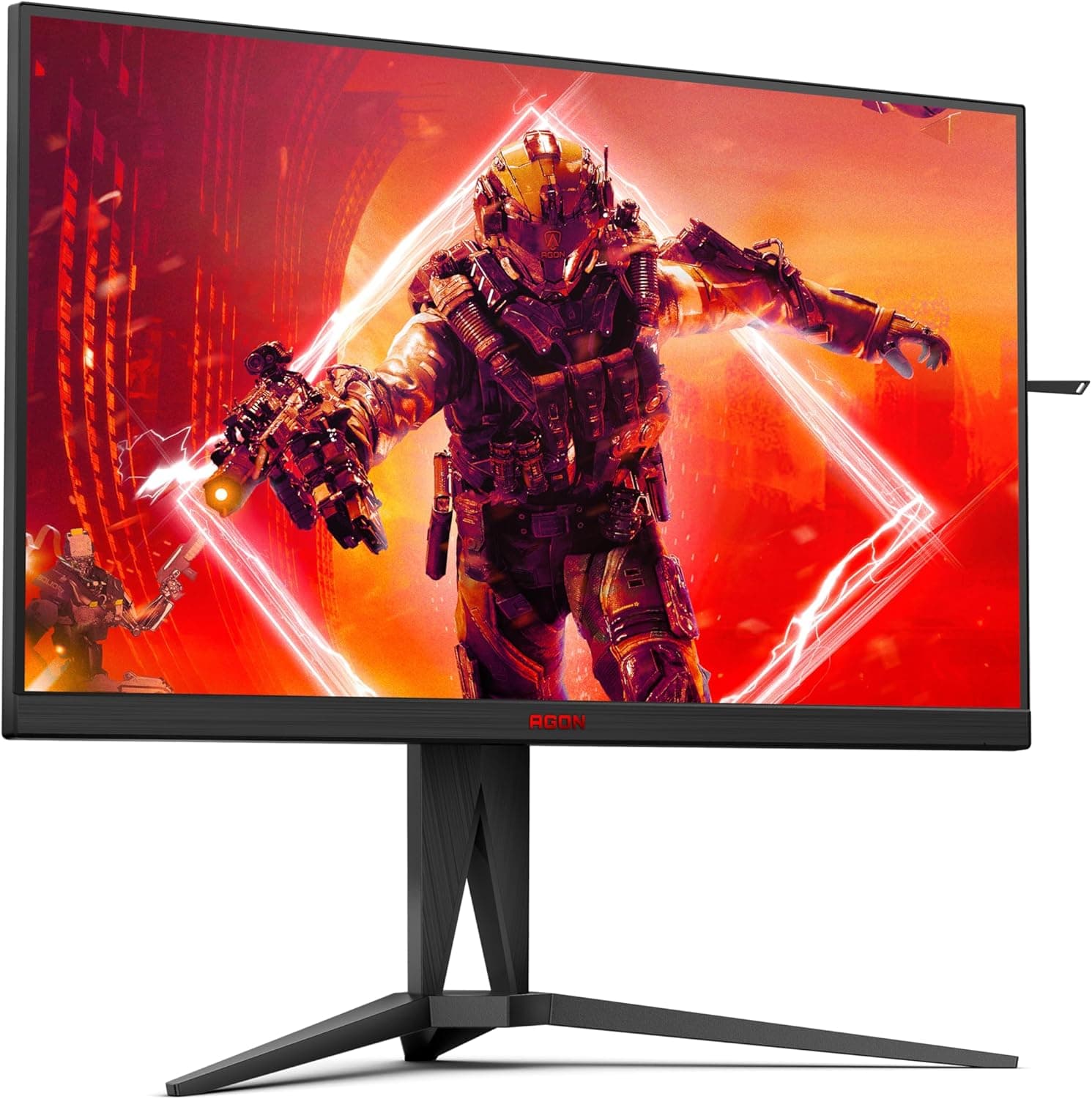
The AOC AG275QZN/EU pairs a 27-inch VA panel with WQHD (2560×1440) resolution and a 165Hz refresh rate. In short, it targets the middle ground: Full HD feels coarse at 27 inches, 4K is too demanding for most GPUs, and WQHD sits between them.
If you prioritize IPS color accuracy and wide viewing angles, or need 240Hz+ for competitive play, look elsewhere.
Overview
Core specs: 27-inch VA panel, 2560×1440 (WQHD), 165Hz refresh rate, 1ms MPRT response time. Inputs total four video ports — 2× HDMI 2.0 and 2× DisplayPort 1.4 — plus a built-in 4-port USB 3.0 hub.
It supports VESA 100×100mm mounting, and the panel weight is listed at 2kg.
WQHD is arguably the sweet spot for 27 inches. Stretching Full HD across a 27-inch panel produces a coarse pixel pitch, softening text and in-game UI.
4K at this size practically requires Windows display scaling and dramatically raises GPU load. WQHD adds usable desktop area while letting you stay at 100% scaling.
The VA panel is the defining choice here. VA produces deeper blacks and higher contrast than IPS, so dark scenes retain more shadow detail.
The trade-offs are narrower viewing angles and slower dark-transition response. Buying this monitor makes sense only if you actively want the VA contrast advantage.
Amazon.co.jp reviews stood at 50 ratings averaging 4.4 out of 5 (roughly 88% positive) as captured in May 2026.
That is a small sample, so treat the score as weak evidence. Judge instead on whether the VA characteristics described below suit you.
Connectivity & Compatibility
The single most important requirement: reaching 165Hz needs a GPU with DisplayPort 1.4 output.
Over HDMI 2.0 the ceiling is 144Hz.
That is why a DisplayPort cable ships in the box — use it. "I can't get 165Hz" while still connected over HDMI is the most common setup mistake with this display.
| Connection | Max refresh rate | Requirement |
|---|---|---|
| DisplayPort 1.4 | 165Hz | GPU with DisplayPort 1.4 output |
| HDMI 2.0 | 144Hz | HDMI 2.0 output port |
Plugging in is not enough. In Windows, go to Settings → System → Display → Advanced display and switch the refresh rate to 165Hz.
Confirming resolution and refresh rate in the NVIDIA Control Panel or AMD Software as well is a good habit.
As for GPU headroom: driving WQHD at high frame rates takes real horsepower. Lightweight competitive titles can hit high frame rates on modest GPUs, but keeping a modern AAA game above 100fps at WQHD with high settings assumes a mid-range or better card.
If your GPU falls short, you simply won't saturate 165Hz — not wasted, but don't expect a new monitor alone to transform a GPU-limited setup.
Consoles connect over HDMI, so they fall under the 144Hz branch, and the actual output depends on what modes your console supports. Check your console's output specs before making it the primary use case.
For mounting, VESA 100×100mm support means standard monitor arms and wall brackets fit. The listed 2kg panel weight is very light relative to typical arm load ratings, but verify the arm supports 27-inch displays.
To use the USB hub, you must connect the included USB upstream cable between the monitor and PC — without it, the monitor's USB ports do nothing.
Product Info
| Item | Value |
|---|---|
| Screen size | 27 inches |
| Panel type | VA |
| Resolution | 2560×1440 (WQHD) |
| Refresh rate | 165Hz |
| Response time | 1ms (MPRT) |
| Inputs | 2× HDMI 2.0, 2× DisplayPort 1.4 |
| USB hub | 4× USB 3.0 |
| VESA mount | 100×100mm |
| Weight | 2kg |
Four video inputs is generous for this class. A desktop, a laptop, a console, and a work-issued machine can all stay plugged in, switched via the OSD.
The four USB 3.0 ports handle a keyboard, mouse, headset, and flash drive without reaching behind the tower.
Included accessories: power cable, DisplayPort cable, USB upstream cable, and a quick start guide. No HDMI cable is listed, so buy one separately if you plan to use HDMI.
Warranty is the manufacturer-standard three years. The monitor launched in late 2022, making it a mature product in its generation.
One caution on pricing. The captured price data contains a figure that is implausible for a mid-range 27-inch monitor, which strongly suggests a data-collection error.
This article therefore quotes no specific price. Prices move often — check the product page for the current figure, and compare against other WQHD 165Hz VA models, which several brands offer.
How It Compares
Among 27-inch gaming monitors, three axes matter: resolution, panel type, and flat versus curved.
Full HD 27-inch models (including 1500R curved ones) cost less and demand less from your GPU, but the pixel pitch is visibly coarse for desktop work and text. Full HD makes sense for gaming-only setups; WQHD wins if the same screen also handles productivity.
Against high-refresh IPS panels, this model's edge is contrast — valuable in dim rooms, night scenes, and shadow-heavy maps. IPS wins on viewing angles and color stability off-axis, which matters for shared viewing or color-critical work.
This is a use-case split, not a ranking.
Against 27-inch 4K models, this one asks far less of your GPU and wallet. If your goal is a meaningful upgrade without replacing the graphics card, moving to WQHD usually delivers better value.
Practical Notes
The most debated VA weakness is dark-transition response. Black-to-gray transitions are relatively slow, which can produce trailing behind fast-moving objects in dark scenes — often called black smear.
The 1ms figure here is MPRT, a metric tied to backlight strobing behavior, not the same as effective GtG response. Do not read "1ms" as "zero ghosting."
Tune overdrive yourself. Too aggressive and you get inverse ghosting (a bright halo on the trailing edge); too weak and you get smearing.
A middle setting usually balances best. Cycle through the OSD levels and check both bright and dark scenes in the games you actually play.
Factory brightness is typically far higher than a home room needs. Lowering it reduces eye strain over long sessions.
Best Use Cases
This monitor suits you if you:
- Are upgrading from a 24–27-inch Full HD panel and want both sharpness and smoothness. WQHD plus 165Hz is an easily perceived jump.
- Play horror or atmospheric single-player games, or watch movies. VA contrast pays off most here.
- Want one screen shared between a PC and a console, or a work and personal machine — four inputs and a USB hub earn their keep.
- Plan a monitor-arm desk setup: VESA 100×100mm and a light 2kg panel.
- Consider 4K overkill for your GPU budget. WQHD is the pragmatic landing spot.
It does not suit color-critical photo or video editors, setups viewed off-axis or by several people at once, or competitive players chasing 240Hz and beyond.
Things to Consider
Viewing angles trail IPS. Head-on it is fine, but color and contrast shift at an angle.
On a 27-inch VA panel, the far corners can look slightly different from the center even when seated centrally. It is a poor fit for a desk-edge placement or couch viewing.
Don't take "1ms" at face value. It is an MPRT figure.
Real-world response depends on overdrive settings and is slower in dark transitions. If you are highly sensitive to trailing, watch VA dark-scene footage before committing.
HDMI caps at 144Hz. A DisplayPort cable is included precisely because of this, yet plugging into HDMI and leaving performance unused is a common outcome.
Verify the actual refresh rate in Windows display settings after setup.
Check the product page for speakers. The provided specification data does not list built-in speakers.
Plan on a headset or external speakers, and budget accordingly.
Listed prices can be far off market rates. The price data referenced for this article included a figure clearly out of line for this product class.
Marketplace listings sometimes carry wildly off-market pricing. Compare several sellers, and avoid outliers on either extreme.
Listing metadata itself is sometimes wrong. Seller details, model numbers, and compatibility notes occasionally belong to a different product.
Confirm from the product images and title that you are ordering the AG275QZN before checking out — sorting out a wrong-model delivery falls on you.
A slower GPU limits the benefit. WQHD is heavier than Full HD.
If you currently sit near 60fps at Full HD, a new monitor alone will not unlock 165Hz. Plan the upgrade alongside a GPU refresh.
FAQ
Q. What do I need for 165Hz? A.
A GPU with DisplayPort 1.4 output, connected with a DisplayPort cable.
Then set 165Hz in Windows advanced display settings. HDMI tops out at 144Hz.
Q. Can I connect a console? A.
Yes, over HDMI — which means the 144Hz branch. The actual refresh rate depends on what your console outputs, so check its specs first.
Q. Is VA ghosting a problem? A.
Rarely in bright scenes; more noticeable in dark ones, which is typical of VA. A mid-level overdrive setting usually balances smearing against inverse ghosting.
Sensitive users should also consider IPS models.
Q. Will it fit a monitor arm? A.
Yes — VESA 100×100mm, with a listed 2kg panel weight, well within common arm ratings. Confirm the arm supports 27-inch displays.
Q. Does the USB hub need extra cabling? A.
Yes. Connect the included USB upstream cable between monitor and PC; the four USB 3.0 ports do nothing on the video cable alone.
Q. WQHD or Full HD at 27 inches? A.
Full HD if it's gaming-only and your GPU is limited; WQHD if the screen also handles desktop work, where Full HD's coarse pixel pitch shows.
Product Disclosure (Amazon)
- Manufacturer: AOC
- Seller: よろず流通館 送料無料!年中無休でお届けします!
- Fulfilled by: よろず流通館 送料無料!年中無休でお届けします!
- ASIN: B0BGCBZP8R
- Note: This article covers a manufacturer-made product based on Amazon listing details.