Overview
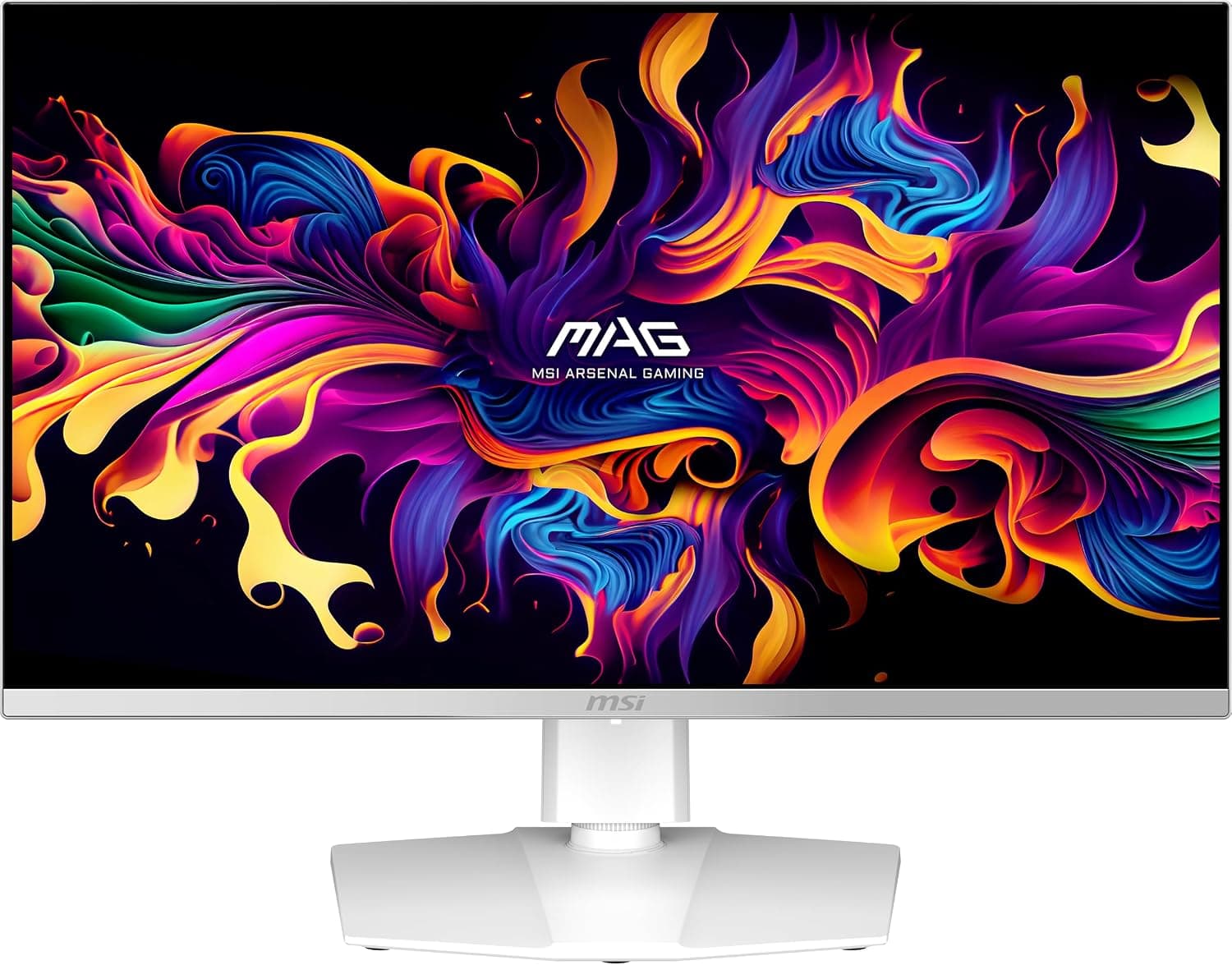
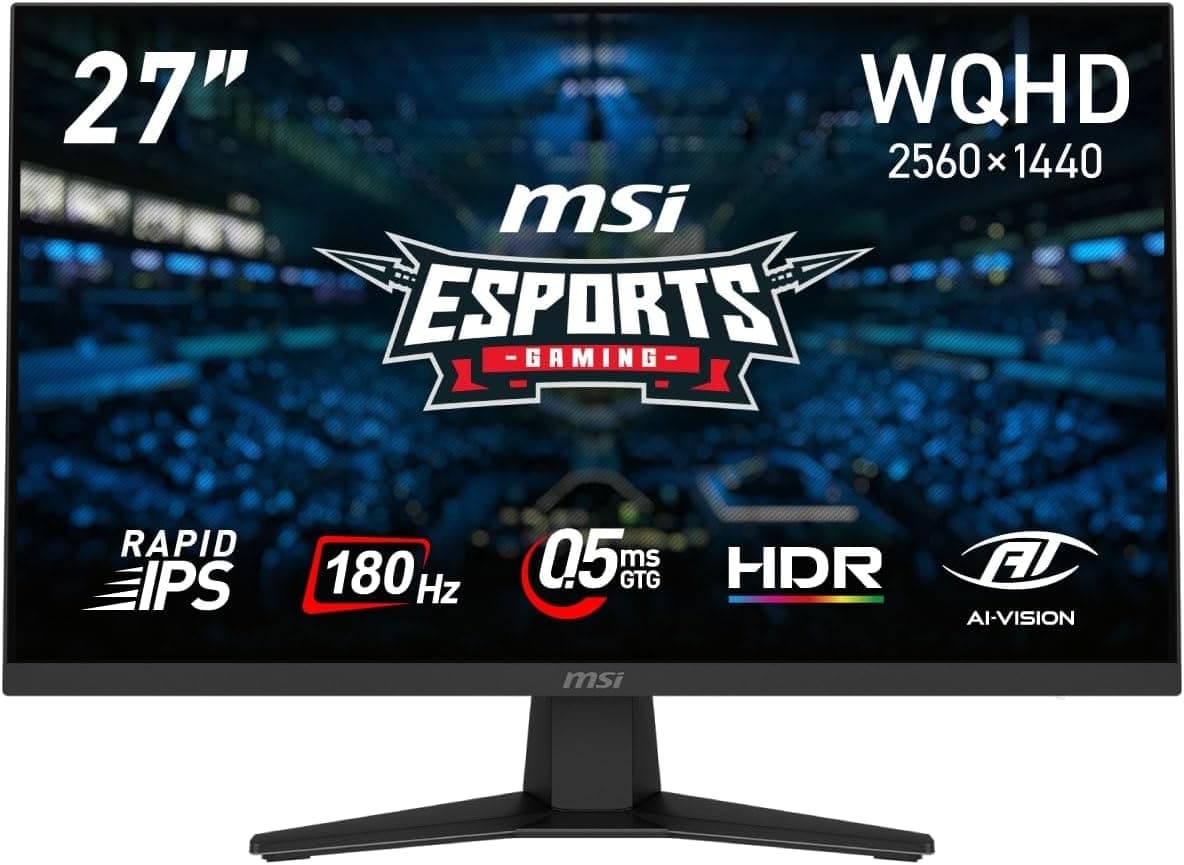
The MSI MAG 274QF is a 27-inch gaming monitor with WQHD (2560x1440) resolution and a 180Hz maximum refresh rate, dropped into one of the most crowded price brackets on the market. The short verdict: it is the most straightforward upgrade for anyone moving up from 1080p who wants more desktop resolution without giving up high refresh rates.
If deep blacks or a fully adjustable stand matter to you, it makes some very specific compromises that are covered below.
The panel is Rapid IPS with a 0.5ms (GTG, minimum) response time, 100% sRGB and 95% DCI-P3 coverage, plus Adaptive-Sync and HDR support.
On Amazon.co.jp it holds 4.3 out of 5 stars across 63 reviews (captured 30 May 2026, roughly an 86% positive score).
Nothing here is class-leading, but nothing is broken either.
Reading the Key Specs
| Item | Value | What it means in practice |
|---|---|---|
| Size / Resolution | 27 in / 2560x1440 | About 109ppi, usable at 100% scaling |
| Refresh rate | 180Hz | Over DisplayPort only; HDMI caps at 144Hz |
| Response time | 0.5ms (GTG, min) | Minimum figure, not an all-transition average |
| Contrast | 1000:1 | Typical IPS; do not expect deep blacks |
| Color gamut | 100% sRGB / 95% DCI-P3 | Fine for web and video; AdobeRGB unpublished |
| Size / Weight | approx. 614x250x439mm / 4.7kg | 250mm depth includes the stand |
Two rows deserve extra attention. The 0.5ms figure is a minimum GTG value, so pushing overdrive to its highest setting tends to introduce inverse ghosting (a bright halo trailing moving objects); start from a middle setting and tune from there.
The 1000:1 contrast ratio is normal for IPS, which structurally cannot match VA or OLED black levels.
Compatibility Guide
There are two video inputs: one HDMI and one DisplayPort. Only DisplayPort carries the full 180Hz; HDMI is limited to 144Hz. This is the single most common post-purchase surprise, and if Windows only offers you 144Hz, the cable port is almost always the reason.
The practical split is DisplayPort for your main PC and HDMI for a console or second machine.
On the GPU side, getting value out of 180Hz at 1440p assumes a discrete card with a DisplayPort output. Adaptive-Sync works with both NVIDIA G-SYNC Compatible and AMD FreeSync to eliminate tearing, but variable refresh still has to be enabled in the driver.
With only two inputs, anyone juggling a PC, a console and a laptop should budget for an HDMI switch from day one. There is no USB-C input, no USB hub and no KVM.
For mounting, the monitor supports VESA 100x100mm and weighs about 4.7kg, comfortably inside the range of a standard gas-spring arm.
That matters, because the included stand offers tilt only (-5 to 20 degrees) with no height, swivel or pivot adjustment. If the eye line is wrong for your desk, your options are a riser or an arm.
Power is internal, so a single AC cable is all you need, and you should plan for roughly 614mm of width and 250mm of depth.
Product Info
The listed price on Amazon.co.jp was 26,542 yen... correction: 25,542 yen as captured on 30 May 2026.
Prices move constantly with stock and sales, so check the product page for the current figure before buying. The overseas marketplace (eBay) entry had no fixed price at capture time, so shipping and warranty terms need to be checked listing by listing.
Domestic retail units come with manufacturer warranty coverage, and manuals and software are available from the support site.
On reception, the Amazon.co.jp rating is 4.3 out of 5 from 63 reviews (same capture date).
Sixty-three reviews is enough to read a trend but not enough to judge low-frequency issues like defect rates. Read what the low-star reviews actually complain about (dead pixels, backlight bleed, unit variance) rather than trusting the average alone.
Compared with Alternatives
The two main rivals at this price are 24-inch 1080p 180Hz panels and 27-inch 1080p curved models around 165Hz. The differentiator here is the combination of 27 inches and a resolution that is not 1080p.
At 27 inches, 1080p works out to roughly 81ppi and the pixel structure becomes visible; WQHD lands near 109ppi and runs at native scaling. As a work surface, this is clearly the better option.
That said, if raw frame rate is the only priority, a 24-inch 1080p panel at the same budget can be the more rational competitive choice, because 1440p raises GPU load and holding 180fps takes real hardware. Against 4K, ultrawide or OLED options, this monitor is meaningfully cheaper but gives up contrast and HDR impact.
Its role is to hit the resolution-versus-speed balance point at a sane price.
Best Use Cases
The best fit is a gamer upgrading from a 1080p 24- or 27-inch panel who mainly plays fast genres such as FPS, racing and action titles, where 180Hz plus Rapid IPS keeps moving edges readable. The second-best fit is anyone running one display for both gaming and work: 100% sRGB and 95% DCI-P3 are plenty for web imagery, video editing and stream previews, and the extra vertical space pays off in timelines and code editors.
It also suits people who plan to use a monitor arm from the start. This design saves money by stripping stand features, so if the stand was going in a closet anyway, you are not paying for something you discard.
It is a poor fit for anyone who wants perfect ergonomics straight out of the box.
Before You Buy
1. HDMI will not give you 180Hz. Only DisplayPort reaches the maximum refresh rate.
Check the box contents, because you may need to supply your own DisplayPort cable.
2. The stand tilts and nothing else. No height, swivel or pivot adjustment is a one-line spec that becomes the most noticeable daily compromise.
On a tall desk or with a low chair, you end up looking up at the screen, and the lack of pivot rules out portrait orientation for code or documents. If that is unacceptable, either step up to a model with a height-adjustable stand or budget for an arm.
3. Understand what 1000:1 IPS contrast means. Blacks lifting to grey in horror games or dark films is a panel characteristic, not a fault.
HDR support at this brightness class is mostly about signal compatibility rather than OLED-style highlight punch. If dark-room contrast is your priority, look at VA or OLED instead.
4. The 0.5ms number is a minimum. Over-cranking overdrive causes overshoot artifacts.
Set it to a middle level and test with a moving-image test pattern to find what your eyes prefer.
5. Product page metadata is sometimes wrong. Retail listings occasionally carry incorrect model numbers, manufacturer names or accessory details.
Confirm from the product images and title that you are looking at the MAG 274QF itself, and if the price looks wildly out of line for this class of monitor, suspect that the page is showing a different item or an accessory.
6. Check for defects immediately on arrival. IPS panels vary in backlight bleed and dead pixels.
Display full-white and full-black images across the whole screen while you are still inside the return window.
FAQ
Q. Does it work with a PS5 or Xbox Series X? A.
Yes, over HDMI, but HDMI is capped at 144Hz and this is a 1440p panel, so confirm your console output settings. 180Hz requires DisplayPort.
Q. What GPU do I need for 180Hz? A.
Any card with a DisplayPort output can send a 180Hz signal. Whether you actually sustain those frame rates at 1440p depends entirely on the title and settings; heavy games at high presets need a solid mid-to-high tier card.
Q. Is text too small at 1440p on 27 inches? A.
Around 109ppi is the standard density for this size and is comfortable at 100% scaling. Coming from a 24-inch 1080p display, text size stays similar while the workspace grows.
Q. Can I use a monitor arm? A.
Yes. VESA 100x100mm and about 4.7kg fit standard arms, and given the tilt-only stand, an arm is actively recommended.
Q. Is the color good enough for print work? A.
100% sRGB and 95% DCI-P3 cover web and video well, but AdobeRGB coverage is not published. For color-managed print workflows, choose a model that states its AdobeRGB figure.
Q. What about warranty? A.
Manufacturer warranty coverage is included, but terms differ between domestic retail units and parallel imports, so check the seller's warranty section before ordering.