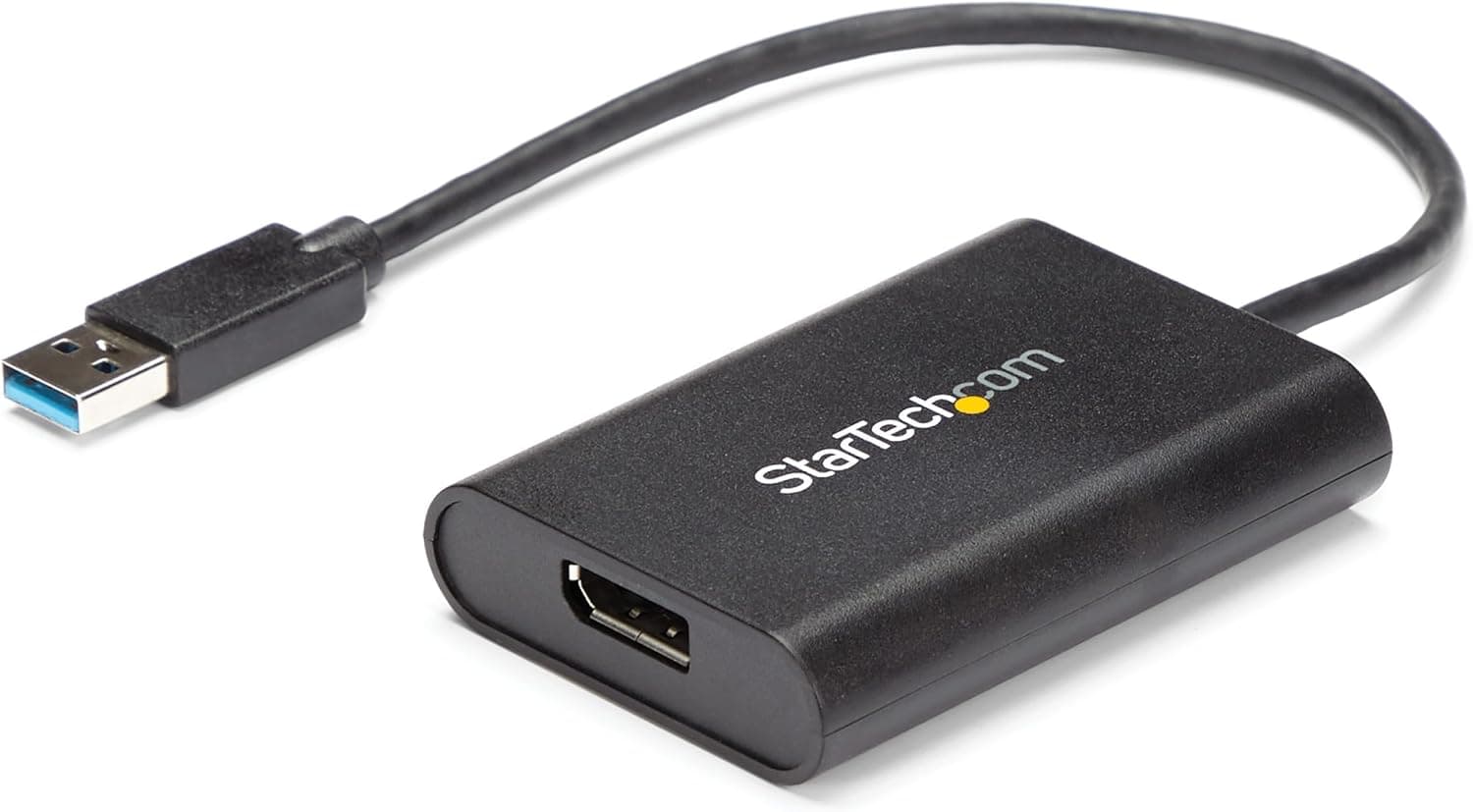
This article looks at the StarTech.com USB32DPES2 (USB 3.0 to DisplayPort adapter) from one angle: which jobs it does well, and which jobs will leave you disappointed.
Overview
The StarTech.com USB32DPES2 is a USB display adapter that adds one DisplayPort monitor to a PC through a USB 3.0 Type-A port.
It exists for situations where your graphics card has run out of video outputs, or where a laptop only offers a single display connector, and you would rather not replace hardware just to add a screen. Maximum resolution is 3840×2160 (4K), but at that resolution the refresh rate is capped at 30Hz.
The short verdict: this is a tool for adding a second or third screen that shows documents, spreadsheets, web pages, and chat windows. It is not a tool for gaming, video playback, or video editing.
On Amazon.co.jp it holds 4.4 out of 5 stars from 284 reviews (88% positive, captured 2026-05-31), which is solid for this product class.
What 4K at 30Hz Actually Looks Like
Understand the "3840×2160 @ 30Hz" line before you buy. At 30Hz the screen redraws only 30 times per second, so the mouse pointer appears to skip slightly and dragging windows does not feel smooth.
For reading text and editing tables — essentially static content — this causes no real problem, but some people need time to get used to it.
If smoothness matters more than pixel count, running a lower resolution is the practical compromise. USB display adapters generally allow higher refresh rates as resolution drops.
The exact resolution and refresh combinations depend on your monitor and PC, so check the manufacturer's product page for the supported list.
One more trait shared by all USB display adapters: video is transported over USB, so it consumes CPU cycles and USB bandwidth on the host. Because video occupies part of the 5Gbps link, it can compete with an external SSD sharing the same controller.
Light office work rarely exposes this, but running several adapters on a low-powered laptop can make the whole system feel sluggish.
Compatibility Guide
The single most important compatibility fact is that this adapter is Windows-only. The compatibility notes list Windows (x86 / x64 / ARM) as supported, with macOS, ChromeOS, and Linux explicitly unsupported.
ARM support means it works on Snapdragon X Copilot+ PCs. Buying one for a MacBook is the most common mistake in this product category — verify your OS first.
Drivers come next. This is not a plug-and-play device: it requires a dedicated driver, and installing it requires administrator privileges.
On a corporate laptop with locked-down permissions, you may simply be unable to install it. Confirm with your IT department before ordering.
Once the driver is in place, you can run several adapters at once for three or more displays.
Think about physical layout too. The housing measures 7.6 × 5.6 × 1.5 cm with a 20 cm captive cable.
It is tidy on a desk, but plugged into the rear ports of a desktop the adapter simply hangs behind the case, and your DisplayPort cable has to run from there. Because the USB cable is integrated, you cannot swap it for a longer one — if the reach is short, you will need a USB extension or a hub.
The connectors are USB 3.0 Type-A male in, DisplayPort female out.
A PC with only USB Type-C ports needs a separate C-to-A adapter. The monitor must accept DisplayPort input; chaining a DisplayPort-to-HDMI converter on the output is possible but tends to be unreliable and is not recommended.
Two-channel audio can travel over DisplayPort to a monitor's built-in speakers.
Product Info
Key specifications:
| Item | Value |
|---|---|
| Connectors | USB 3.0 Type-A (M) → DisplayPort (F) |
| Max resolution | 3840×2160 @ 30Hz |
| USB data rate | 5Gbps |
| Audio | 2ch via DisplayPort |
| Cable length | 20 cm, integrated |
| Dimensions | 7.6 × 5.6 × 1.5 cm |
| Color | Black |
| Supported OS | Windows (x86 / x64 / ARM) only |
Prices at the time of capture: Amazon.co.jp showed ¥11,872 on 2026-05-31, and the same listing showed ¥13,261 on 2026-08-27 — more than ¥1,000 of movement in under three months.
On eBay (US) it was $59.99 as of 2026-07-16.
All of these are capture-time figures that shift with sales, exchange rates, and stock, so always check the current price on the product page.
Whether that price is fair depends on your priorities. It is not the cheapest USB display adapter available.
StarTech.com has long served IT professionals, and if you value long-term availability, support, and continued driver updates in a business environment, the premium is defensible.
If you just want one more screen for personal use, it will likely feel expensive.
Weighing the Alternatives
Before buying, it is worth asking whether a USB display adapter is really the right answer.
- You still have a free video output — just use it. A direct GPU connection wins on image quality, refresh rate, and CPU load.
- Your PC supports DisplayPort Alt Mode over USB-C — a plain USB-C to DisplayPort cable is cheaper and better.
- Every video output is occupied, or there are none — this is where an adapter like the USB32DPES2 genuinely makes sense.
- You want many screens on a desktop — replacing the graphics card with one that has more outputs may cost more but work better.
In other words, this product is a pragmatic fallback, not a first-choice video output. Buying it with that understanding is what separates satisfied owners from disappointed ones.
Setup and Common Snags
Installation is easy, but order matters. The usual sequence is install the driver first, reboot, then connect the adapter.
If you plugged it in first and nothing happened, unplug it, reinstall the driver, and reconnect.
If you get no picture, check the following:
- Is it in a USB 3.0 port (usually the blue one)? USB 2.0 does not have the bandwidth.
- Is it plugged directly into the PC rather than through a hub? Test direct first to isolate the problem.
- Is the monitor's input source switched to DisplayPort?
- In Windows display settings, is the mode set to "Extend"? It may default to duplicate.
- If it stopped working after a major Windows update, reinstall or update the driver.
Best Use Cases
- Business users whose laptop video output is already taken and who want one reference monitor
- Desktop users short on graphics outputs who would rather not replace the GPU
- Home-office workers who want a permanent "parking screen" for mail and documents
- Anyone who wants 4K pixel density for text work and is fine with 30Hz (writing, spreadsheets, coding, browsing)
- Users of company-issued Windows PCs who can obtain administrator rights to install the driver
- Users who plan to combine multiple adapters for three or more displays
Things to Check Before Buying
The biggest trap is that 4K only runs at 30Hz. If you see "4K" and assume 60Hz, you will be disappointed.
Gaming, video playback, and animated interfaces fall outside this product's intended use. For a gaming second screen, use a free GPU output or move to a card with more outputs.
Windows-only support is easy to miss. macOS, ChromeOS, and Linux are not supported.
MacBook and Chromebook owners should look at USB-C docks or Alt Mode cables instead.
The administrator-privilege requirement bites in corporate environments. If you cannot install the driver, the hardware does nothing.
Confirm your install rights first.
Accept the CPU and bandwidth cost. Pushing video over USB loads the host more than a direct GPU connection.
Several adapters on a weak laptop can slow the whole machine.
Watch the price swing. The same listing moved from ¥11,872 (captured 2026-05-31) to ¥13,261 (captured 2026-08-27).
If you are not in a hurry, watch it for a while before ordering.
Finally, product listings sometimes carry registration details that do not match the actual item — manufacturer names, model numbers, or compatibility notes copied from a different product. Before ordering, confirm from the images and title that you are buying the USB32DPES2 (USB 3.0 to DisplayPort, Type-A).
Sibling models with USB-C input or HDMI output look similar but will not fit your setup.
FAQ
Q. Can it do 4K at 60Hz? A.
No. The rated maximum is 3840×2160 @ 30Hz.
For 60Hz, use a direct GPU output or a higher-bandwidth solution.
Q. Does it work with a Mac? A.
No. Supported operating systems are Windows (x86 / x64 / ARM) only; macOS, ChromeOS, and Linux are listed as unsupported.
Q. Is a driver required?
A. Yes, and installing it needs administrator privileges, so restricted PCs cannot use it.
Q. Can I run two or more for a three-screen setup? A.
Yes. After the driver is installed, multiple adapters can run at once — but each one adds CPU load and USB bandwidth use, so leave headroom.
Q. Can I connect it to an HDMI monitor? A.
Not directly; the output is DisplayPort female. A DisplayPort-to-HDMI converter can work but adds instability, so a monitor with a DisplayPort input is recommended.
Q. Does it work on a Snapdragon X Copilot+ PC? A.
Windows on ARM is listed as supported, so yes. Check the product page for current driver availability first.
Q. Will it work in a USB 2.0 port? A.
It is not designed for that. The product assumes USB 5Gbps (USB 3.0), so connect it directly to a USB 3.0 or faster port.