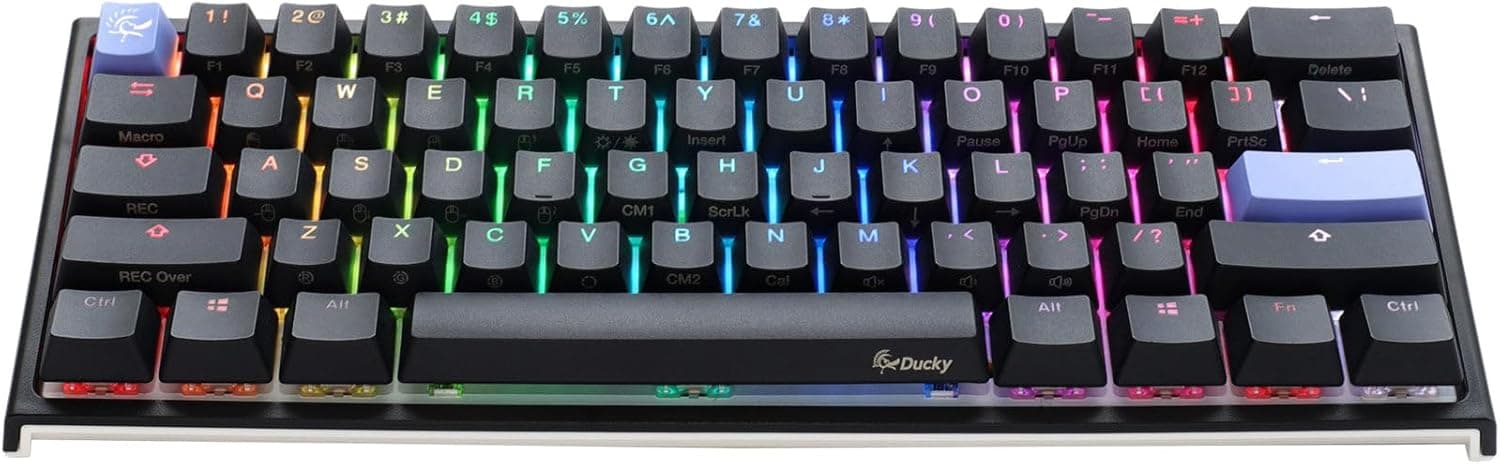
This article looks at the Ducky One 2 Mini 60% gaming keyboard from the angle that actually matters: where people hesitate, and where they end up regretting the purchase.
Overview
The Ducky One 2 Mini is a 60% mechanical keyboard from Taiwan-based Ducky Channel, and this variant ships with Cherry MX Brown switches. The short version: it is an excellent pick for low-sensitivity FPS/TPS players and for newcomers looking for a first serious mechanical board.
It is a poor pick for anyone who lives in spreadsheets or leans on arrow keys, because the layer gymnastics described below never fully go away.
The board measures 30.2 × 10.8 × 4 cm, weighs about 600 g, and packs 61 keys into a 60% layout.
Compared with a full-size board of roughly 104 keys, that is over 40 keys removed — the numpad, the function row, the arrow cluster, and navigation keys like Delete/Home all move onto an Fn layer. What you get back is roughly 15 cm of horizontal desk space, which is exactly what a low-sens player sweeping the mouse across a large pad needs.
Keycaps are PBT doubleshot. Unlike ABS, they resist the greasy shine that develops with heavy use, and because the legends are molded rather than printed, they cannot wear off.
At around 600 g the board is not featherweight, which in practice means it stays put during aggressive mouse work.
What a 60% Layout Actually Costs You
The thing that trips people up is not visible on a spec sheet: you have to relearn everyday input. Specifically, these become Fn combinations:
- The function row (F1–F12) — in-game quicksave, F5 in a browser, Alt+F4, all of it
- Arrow keys — mapped to the lower right of the layer in the usual 60% convention
- Delete / Home / End / PgUp / PgDn — the keys that matter for editing text
- The numpad — you are left with the number row only
In practice, gaming feels normal after a day or two. That is because 60% removes nothing from the region games actually use: WASD, the number row, Shift/Ctrl/Space.
Text editing and coding are different — budget one to two weeks. You can shorten that by using Ducky's macro features to remap only the keys you genuinely reach for into positions your fingers already know.
Compatibility Guide
Connection is a detachable USB Type-C cable (about 1.5 m).
There is no Bluetooth and no wireless mode. Detachability matters more than it sounds: the connector-side cable break is the classic failure mode for wired keyboards, and here it costs a cable rather than the board.
It also makes the small footprint genuinely portable.
Supported operating systems are Windows, macOS, and Linux, and the board enumerates as a standard USB HID device with no driver install. That "no driver" property is a real benefit if you dislike background utilities or work on a managed machine where you cannot install software.
Settings live in onboard memory, so macros and lighting profiles follow the keyboard between machines.
One documented caveat: because of the 60% layout, the numpad and function row are only reachable through layer switching. Hammering F2/Del at boot, or a game launcher that does not read layered input, can in principle misbehave.
If you are in the BIOS often, keep a cheap spare keyboard around. Physically, at 10.8 cm deep and 4 cm tall with three-step angle adjustment, it is easy to pair with a wrist rest.
Product Info
| Spec | Value |
|---|---|
| Dimensions | 30.2 × 10.8 × 4 cm |
| Layout | 60% (61 keys) |
| Switch type | Cherry MX Brown |
| Keycap material | PBT doubleshot |
| Backlight | Addressable RGB |
| Connection | USB Type-C (detachable) |
| Cable length | approx. 1.5 m |
| Weight | approx. 600 g |
| Supported OS | Windows / macOS / Linux |
Cherry MX Brown is a tactile switch: a small bump partway through the travel, with no click mechanism. It has none of the sharp clack of a Blue but returns more feedback than a linear Red, which is why it is the default answer for people who want one board for gaming and typing.
It is not a silent switch, though — bottoming out is clearly audible.
The RGB is addressable per key, so you can do genuinely useful things with it: color WASD differently, or light only the keys that carry a layer assignment. On a 60% board, where you cannot read the layer off the caps, learning the layer by color works better than you would expect.
On reception: as of the June 7, 2026 capture, Amazon.co.jp shows 38 reviews at 4.1 out of 5 (82% positive).
With a sample that small, treat the number as confirmation that nothing is badly wrong rather than as a precise quality ranking. The model dates from around 2019 and has been a community staple ever since.
On price, the only reference available here was an eBay search results page with no confirmed figure. Prices vary widely by retailer, timing, and exchange rate — check the product page for the current price. As a general guide, it sits in the mid-range tier for 60% mechanicals.
The box typically includes the board, a USB-C cable, a keycap puller, spare keycaps, and a manual, but contents differ by batch and seller, so confirm on the listing.
How It Compares
Against the other boards shoppers usually line up next to it, the One 2 Mini's position is clear.
- Want wireless? Look elsewhere. This is wired-only. If cutting cables or roaming between machines is your top requirement, buy a wireless board.
- Want to swap switches later? Look elsewhere. This is not built around hot-swap sockets. If "tinker with switches over time" is the plan, a hot-swap model is the honest choice.
- Think 60% cuts too deep? Consider 65%/75%/TKL. Keep physical arrows with 65%; keep the function row with 75% or TKL.
- Like Ducky specifically? Other boards in the lineup share the same build philosophy, so moving within the family is low-friction.
The entire decision is where you draw the line between size and directness. Smallest is not automatically best — spend a few days noticing how often you actually hit the function row and the answer appears on its own.
Best Use Cases
Strong fits:
- Low-sens FPS/TPS players, or anyone on a cramped desk — the space savings convert directly into aim room
- Mechanical keyboard newcomers — genuine Cherry switches plus PBT doubleshot caps is a combination you rarely regret
- People who want feedback without clack — MX Brown lands squarely between Blue and Red
- Anyone using several PCs — onboard memory means plugging in restores your setup
- Keycap hobbyists — a standard 60% layout gives you wide aftermarket keycap support
Before You Buy
Confirm up front that this is not hot-swappable. Plenty of modern boards let you pull switches by hand; buying with that assumption means being stuck if the Brown feel does not suit you.
Watch at least one sound-and-feel video before committing.
Noise deserves thought for home offices and shared rooms. MX Brown is quieter than Blue but is not a silenced switch, and PBT caps tend to sharpen the sound profile.
A video-call mic will pick it up. If late-night or shared-space use is the norm, look at a silent switch variant instead.
"I'll just add an external numpad" is less pleasant than it sounds. Putting a numpad on the desk spends the space the 60% layout just saved you.
If number entry — accounting, data entry, CAD — is central to your work, buy a full-size or at least a TKL board from the start.
Keep boot-time input in mind. Spamming F2/Del at POST can be less reliable when a layer is involved.
DIY builders who visit the BIOS often should keep a spare keyboard on hand.
Watch for listing inconsistencies. In the data referenced here, the price field pointed at a search results page rather than a confirmed figure.
Retail listings for this board also tend to mix variants on a single page — switch type (Brown/Red/Blue), keycap language layout (US/JIS), RGB versus single-color backlighting. Do not trust the listed attributes alone; verify against the product images, the title, and the variant selector that you are buying the configuration you intend (Cherry MX Brown, RGB, 60%).
Finally, note the review count: 38 as of June 7, 2026. A 4.1/5 is good, but a small sample swings on a handful of outliers.
Decide on layout and switch feel, not on the score.
FAQ
Q. Is a 60% board really fine for gaming? A.
Yes, for the most part. WASD, the number row, and Shift/Ctrl/Space/Alt are all untouched.
The friction shows up in titles that lean on F keys for quicksave; remap those to reachable positions with a macro.
Q. How do I press arrow keys? A.
Via Fn combinations. It becomes automatic with practice, but it stays a real cost if you edit text or code all day.
If you want physical arrows, look at a 65% layout.
Q. Can I change the switches later? A.
Not casually — the board is not designed around hot-swap sockets. If experimenting with switches is part of the appeal, choose a hot-swap model.
Q. Does it work on a Mac? A.
macOS is listed as supported and it works with stock drivers. The legends follow Windows conventions, so adjust Command/Option through OS settings or the board's macro function.
Q. Do I have to install software? A.
No. Macros and lighting can be configured on the board itself and are stored in onboard memory, which is a genuine advantage on locked-down machines.
Q. Can I use a generic USB-C cable? A.
Generally yes, since the port is standard detachable Type-C. Make sure it is a data-capable cable — charge-only cables will not work.
Custom cables are a popular way to change the look.